

Advertisements
Nearly 60% of Americans worry about privacy after one online incident. Yet, most still browse without basic protections.
This guide offers clear, practical habits. They help people in the United States protect personal data, avoid scams, and control web tracking.
Secure browsing habits are routines and settings. They lower the risk of identity theft, account hacks, and malware infection.
Online safety means protecting identity, financial info, and devices. Web privacy practices help users control what sites collect about them.
This short how-to is for people using desktops, laptops, tablets, and smartphones. It gives straightforward online safety tips and privacy practices.
It explains easy actions anyone can try today. These include strong passwords and safe Wi‑Fi use.
Readers will learn ways to reduce risk when banking, shopping, and talking online.
The article is a step-by-step checklist. It covers passwords, two-factor authentication, updates, secure connections, public Wi‑Fi, phishing, privacy settings, ad blockers, education, account monitoring, and antivirus choices.
Key Takeaways
- Secure browsing habits lower the chance of account compromise and identity theft.
- Online safety tips include strong passwords, updates, and two-factor authentication.
- Web privacy practices help control tracking and the data sites collect.
- These steps apply to desktops, laptops, tablets, and smartphones.
- The guide offers practical, actionable steps for immediate improvement.
Understanding the Importance of Secure Browsing
Everyday online actions—checking email, shopping on Amazon, scrolling social media, and using online banking—carry risks many users underestimate. Small mistakes can cause financial loss, identity theft, or account takeovers. U.S. consumers face phishing and data breaches affecting millions each year.
Adopting solid internet security and secure browsing habits lowers risk and strengthens cybersecurity practices.
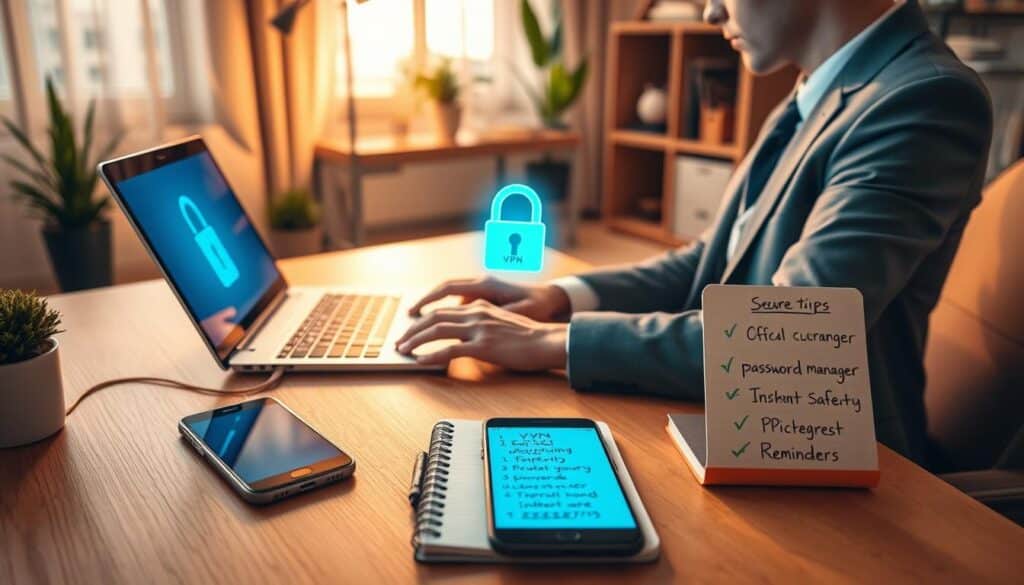
Why Security Matters Online
Routine tasks create chances for attacks. A hacked email can unlock many linked accounts. One exposed card may cause fraudulent charges.
Data breaches at firms like Equifax and Experian show how quickly personal data becomes weaponized. Victims often face lost money, damaged credit, and lengthy recovery.
Common Online Threats
- Malware: includes ransomware and trojans that encrypt files or steal data.
- Phishing and spear-phishing: deceptive messages trick users into revealing credentials.
- Man-in-the-middle attacks: interception of data on unsecured connections.
- Malvertising and drive-by downloads: malicious ads or sites installing code silently.
- Credential stuffing: automated attacks using leaked passwords to break into accounts.
- Tracking and targeted advertising: persistent tracking builds profiles for misuse.
Threat actors range from opportunistic criminals to organized cyber gangs and state-sponsored teams. They use different tools but often exploit weak points like reused passwords, poor device care, and risky clicks.
How Browsing Habits Impact Security
User choices affect vulnerability. Reusing passwords across services allows credential stuffing after breaches. Ignoring browser updates opens the door to drive-by downloads. Using open Wi‑Fi without protection puts sessions at risk.
Simple changes yield big gains. Enabling automatic updates, avoiding unknown links, and following basic security steps increase resilience. Secure browsing habits make daily behavior safer and reduce chances of attack.
Use Strong, Unique Passwords
Strong, unique passwords form the first line of defense for safer accounts and better data protection. Simple or reused passwords help attackers access many services easily. Treat password hygiene as a daily habit that helps secure browsing and online safety.
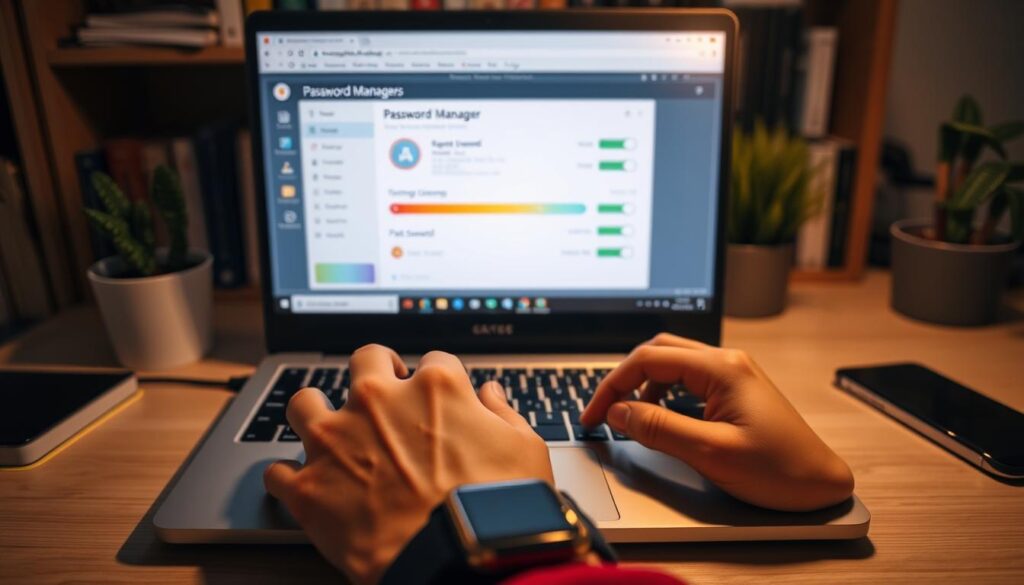
The following tips help create passwords that resist guessing and cracking.
Tips for Creating Strong Passwords
Use at least twelve characters. Longer passwords raise entropy and slow attackers. Mix uppercase, lowercase, numbers, and symbols.
Avoid common words, predictable substitutions like “P@ssw0rd,” and personal data such as birthdates or pet names. This reduces social-engineering attack chances.
Use passphrases of three or more unrelated words. They are easier to remember and hard to brute-force. Change passwords after any suspected breach. Use unique passwords for each account to limit damage.
The Importance of Password Managers
Password managers like 1Password, Bitwarden, LastPass, and Dashlane create and store secure credentials automatically. They eliminate the need to remember many complex passwords and reduce password reuse.
Choose a manager with AES-256 encryption and zero-knowledge design. It should have independent security audits. Use biometrics or a PIN to lock the manager app for extra security.
Password managers make it easier to change passwords after breaches. They also often support two-factor authentication for added protection. Using one tool supports consistent secure habits and stronger data protection.
| Aspect | Recommendation | Why it matters |
|---|---|---|
| Length | 12+ characters or a 3-word passphrase | Increases entropy and slows brute-force attacks |
| Composition | Upper/lowercase, numbers, symbols | Expands character set to resist guessing |
| Uniqueness | Different password per account | Limits breach impact across services |
| Manager Features | AES-256, zero-knowledge, audits, biometrics | Ensures secure storage and convenient access |
| Post-breach Action | Rotate passwords, enable 2FA | Makes account recovery faster and safer |
Enable Two-Factor Authentication
Adding a second verification step makes accounts more secure than using passwords alone. This brief guide explains common methods and benefits. Readers can learn how to adopt two-factor authentication as part of strong cybersecurity habits.
What is an additional verification step?
Two-factor authentication needs two proofs before granting access. One is something the user knows, like a password. The second is something the user has or is, such as a fingerprint, an app, or a hardware key.
Authenticator apps include Google Authenticator and Authy. They generate time-based codes. Push-based services like Duo send approval prompts. Hardware keys such as YubiKey use the FIDO2 standard and protect against remote attacks.
Why add a second factor?
Two-factor authentication reduces the risk of account takeovers even if passwords leak. Studies show authenticator apps or hardware keys block many automated attacks and breaches.
Users should prefer authenticator apps or hardware tokens over SMS codes. SMS can be intercepted by SIM swapping or carrier weaknesses. Setting up two-factor authentication on email, banking, and social media adds layers of protection.
| Method | How It Works | Pros | Cons |
|---|---|---|---|
| Authenticator App | Generates time-based one-time passwords (TOTP) on a smartphone | Strong, offline, widely supported | Device loss requires recovery steps |
| Push Notification | Sends an approval prompt to a registered device | Quick, user-friendly, phishing-resistant | Depends on device and network availability |
| Hardware Key | Physical USB/NFC token that signs authentication requests | Highest security, resists remote attacks | Upfront cost and must be carried |
| SMS Code | One-time code sent via text message | Easy to set up, universal support | Vulnerable to SIM swap and interception |
Using two-factor authentication follows core cybersecurity best practices. It works well with strong passwords and careful browsing habits. Both organizations and individuals lower risks by enabling these protections on key accounts.
Keep Your Software Updated
Keeping apps and system software current is a simple step toward stronger internet security. Updates fix holes in Windows, macOS, iOS, Android, and browsers like Chrome, Firefox, Safari, and Edge. Untreated vulnerabilities attract malware and exploits that target outdated systems.
Importance of Regular Updates
Security patches close gaps attackers use to gain access. Publicized zero-day flaws get exploited fast when users delay updates. Plugins and third-party apps can be weak links if unpatched.
Applying updates reduces the attack surface on laptops, phones, and tablets. IT teams at Microsoft and Apple release fixes because attackers test neglected versions.
How to Automate Software Updates
Turn on automatic updates for operating systems and browsers to keep secure browsing without manual steps. On Windows use Windows Update or Windows Update for Business. On macOS use Software Update in System Settings.
Enable background app updates on mobile devices. Use iOS App Store automatic updates and Google Play auto-update options. Configure firmware and BIOS updates when manufacturers offer them.
For many devices, use managed update tools to schedule rollouts and restarts. Check update logs often and restart devices when updates require it to apply patches.
Use a Secure Connection
Good browsing starts with a secure connection. Small steps can protect data and improve web privacy daily. People who use internet security measures lower risks of interception.
What Is HTTPS?
HTTPS combines HTTP with TLS/SSL. It encrypts data between browsers and websites. This keeps information private and intact during transfer.
Users spot HTTPS by a padlock and URLs starting with https://. The padlock stops passive spying and blocks man-in-the-middle attacks.
Encryption alone does not prove a site is trustworthy. People should check the domain and reputation before sharing sensitive data.
Ensuring a Secure Wi-Fi Network
Secure home Wi‑Fi protects devices and supports good web privacy. First, change the router’s default admin credentials to strong, unique ones.
Enable WPA3 if possible. Use WPA2 if WPA3 is not available. Choose a strong Wi‑Fi password and disable WPS if you can.
Keep your router firmware updated. Create separate guest networks for visitors and IoT devices. Change the default SSID to hide the router brand or model.
Use a hardware or operating system firewall on your devices. Use a reliable VPN on untrusted networks for extra security online.
Be Cautious with Public Wi-Fi
Public hotspots at cafes, airports, hotels, and libraries offer convenience. They pose real risks if used without caution. Simple steps can protect your personal data and keep browsing safe.
Risks of Using Public Networks
Unencrypted networks let attackers listen to your traffic. This can expose login details, session cookies, and private messages without encryption.
Rogue hotspots copy real network names to trick users. Connecting to these lets hackers steal accounts through man-in-the-middle attacks or session hijacking.
Risks grow when accessing banking, email, or sensitive services. Personal information exposure can cause credential theft and financial loss.
Avoiding Pitfalls While Browsing on the Go
Don’t log into sensitive accounts on public Wi-Fi unless your data is protected. Trusted VPNs like NordVPN, ExpressVPN, or ProtonVPN encrypt data end-to-end.
Check network names with staff before connecting. Turn off auto-join for open networks and disable file sharing and network discovery on your device.
Use cellular data on 4G or 5G for banking or private tasks. Keep your firewall on and enable two-factor authentication for extra security.
Use browser privacy tools to block third-party cookies and trackers. These tips and habits reduce the chance of compromise on public Wi-Fi.
Recognize Phishing Attempts
Phishing remains a top trick used by attackers to steal accounts and data. Readers should learn how these scams work. Adopting secure browsing habits helps reduce the risk.
Practical online safety tips make it easier for individuals and teams to spot and avoid phishing.
What is Phishing?
Phishing means social-engineering attacks that trick people into revealing credentials or personal data, or downloading malware. Common types include email phishing and spear-phishing, which targets specific people.
Other forms include smishing via SMS, vishing through voice calls, and fake websites impersonating trusted services.
How to Spot a Phishing Email
- Unexpected requests that demand urgent action should raise suspicion.
- Generic salutations like “Dear Customer” often indicate mass phishing.
- Suspicious sender domains may use typosquatting to mimic real brands.
- Links differing from visible text reveal mismatched URLs when hovered over.
- Unsolicited attachments, especially .exe, .zip, or .scr files, are high risk.
- Poor grammar, odd phrasing, or low-quality design often signal fraud.
- Spoofed display names can appear legitimate while the underlying address is fake.
Verify any doubtful message through a trusted channel like a known phone number. Alternatively, access the service’s official website via a separate login. Check email headers to trace the sender’s IP or domain when possible.
Use built-in phishing filters and protocols such as DMARC, DKIM, and SPF. These reduce the delivery of spoofed mail. Always practice cybersecurity best practices by never entering credentials on pages reached through email links.
Navigate manually to the site instead to protect your data.
Review Privacy Settings
Apps and websites gather detailed personal data. Regularly reviewing privacy settings helps reduce your data exposure. This strengthens your web privacy practices.
A simple audit of permissions can limit risks tied to over-sharing. It also helps prevent targeted advertising.
Importance of Reviewing Privacy Settings
Many services share data with partners and data brokers. Unchecked permissions may expose location, microphone, camera, and contact lists.
Auditing app and browser access cuts the chances of identity theft or social-engineering attacks. Users should revoke access they don’t need.
Turning off precise location and disabling unnecessary sensors lowers your chance of unwanted tracking. These actions support long-term account safety.
Adjusting Settings on Social Media
Social platforms offer controls to limit who sees your information and third-party access. On Facebook, use Privacy Checkup to limit post audiences.
Remove apps that no longer serve a purpose. On X, set account discoverability and review connected apps. Instagram users can switch to private accounts.
Control story sharing and inspect linked services on Instagram. LinkedIn members should reduce profile visibility and limit who sees connection details.
Opt out of ad personalization when possible. Use separate email addresses for social accounts to reduce cross-service profiling.
These habits create secure browsing routines. They also fit into broader data protection strategies.
| Platform | Key Privacy Action | What to Check |
|---|---|---|
| Privacy Checkup | Post audience, app access, ad settings, location | |
| X (Twitter) | Account Discoverability | Protect tweets, connected apps, direct message settings |
| Account Visibility | Private account toggle, story shares, third-party app links | |
| Profile Visibility | Who can see profile, activity broadcasts, connection info |
Use Ad Blockers
Ad blockers make browsing safer and cleaner. They reduce exposure to harmful ads that cause drive-by downloads. This helps prevent visits to phishing pages.
Using ad blockers promotes secure browsing. It cuts down tracking and speeds up page loading times.
Some sites rely on ad revenue. Readers can choose acceptable ads or whitelist trusted sites for balance. Keep extensions up-to-date and install only from official stores to avoid malicious add-ons.
How Ad Blockers Enhance Security
Blocking ads lowers the risk of exploit kits in ad networks. This cuts chances of drive-by malware and unwanted redirects.
Less tracking means stronger privacy by limiting cross-site profiling. Performance also improves as pages load faster and use less bandwidth.
These benefits help on metered connections and make mobile browsing smoother.
Recommended Ad Blocker Tools
Pick well-known and transparent tools for best results. uBlock Origin is open-source and uses few resources. AdGuard offers apps for desktop and mobile, plus browser extensions.
Brave Browser includes built-in ad and tracker blocking for a complete solution. Ghostery and Privacy Badger focus on tracker control and work well with content blockers.
Extensions exist for Chrome, Firefox, Edge, and Safari. Always check permissions and avoid installing extensions from unverified sources.
| Tool | Platform | Strengths | Notes |
|---|---|---|---|
| uBlock Origin | Chrome, Firefox, Edge | Open-source, low resource use, strong filter customization | Available from official extension stores; highly recommended for power users |
| AdGuard | Windows, macOS, Android, iOS, Browser Extensions | App and extension options, DNS filtering, parental controls | Paid and free tiers; desktop apps add system-wide protection |
| Brave Browser | Windows, macOS, Linux, Android, iOS | Native ad and tracker blocking, privacy-forward defaults | Built-in features reduce need for extra extensions |
| Ghostery | Chrome, Firefox, Edge, Safari | Tracker-focused, clear UI for blocking decisions | Good for users prioritizing web privacy practices |
| Privacy Badger | Chrome, Firefox, Edge | Automated tracker blocking based on behavior | Developed by Electronic Frontier Foundation; complements ad blockers |
Educate Yourself on Secure Browsing
Building better online safety begins with learning. Short courses, official guidance, and news help people adopt safe browsing habits.
These resources teach cybersecurity best practices clearly. They reduce confusion around online safety.
Start with free, trusted training. Google Digital Garage offers basic web safety modules. Microsoft shares security guidance for Windows and Office.
Platforms like Coursera and edX provide university courses on cyber hygiene and threat awareness.
Government and nonprofit sites offer practical safety tips. The U.S. Cybersecurity & Infrastructure Security Agency (CISA) posts alerts and advice.
The Federal Trade Commission keeps clear pages on scams and privacy for consumers.
Platform help centers guide immediate steps. Check Google Account security, Apple Support, and Microsoft Security pages to secure services and devices.
Recommended reading and subscriptions
- Krebs on Security for investigative reporting and breach analysis.
- CISA and US-CERT alerts for real-time vulnerability notices.
- Ars Technica and The Register security sections for technical updates.
- Vendor blogs from NortonLifeLock, Kaspersky, and ESET for defensive tips.
Use a mix of news feeds and hands-on practice. Subscribe to Have I Been Pwned for breach alerts.
Enable warnings from banks and providers to get timely security advisories.
Make learning ongoing. Schedule routine checks of account settings.
Rehearse safe behaviors learned in courses regularly. This keeps habits current and strengthens cybersecurity skills.
Regularly Monitor Your Online Accounts
Active monitoring helps protect personal data. It also supports strong data protection strategies. Small, regular checks stop minor problems from becoming major breaches.
Reviewing accounts should be a key part of secure browsing habits. It is an essential tip for online safety.
Setting Up Account Alerts
Enable activity notifications for email providers like Google and Microsoft. Also activate alerts on banks, PayPal, and social platforms like Facebook and Twitter. Turn on alerts for suspicious sign-ins, password changes, new device logins, and large transactions.
Use transaction alerts for checking and credit card accounts. These help catch fraudulent charges quickly. Subscribe to automated credit monitoring reports when offered by banks.
Centralize security when possible. Tools like Google Security Checkup and Microsoft Account dashboard show connected devices, active sessions, and recent security events.
What to Do if You Suspect a Breach
Act immediately by changing passwords. Use a password manager to create unique, strong passwords. Enable or reconfigure two-factor authentication on affected accounts.
Sign out of all sessions and remove unfamiliar devices. Contact the service provider and your bank to report suspicious activity. Request account holds or transaction reversals if needed.
If financial data is exposed, freeze credit with Experian, Equifax, and TransUnion. Report identity theft to the Federal Trade Commission at IdentityTheft.gov. Keep records of all communications for legal or insurance claims.
Run a full antivirus scan. Check device lists and logs for unauthorized access. Restore from clean backups if malware is found. Document each step and save alerts and correspondence to support recovery efforts.
The Role of Antivirus Software
Antivirus software is a key layer in everyday cybersecurity. It checks files and processes instantly for known malware. It also uses behavior methods to find new threats.
Ransomware protection, web filtering, and email scanning stop harmful content before it runs. These tools also isolate and fix infected files. This helps restore devices safely.
Antivirus works best with secure browsing and software updates. Two-factor authentication adds more protection. A layered defense stops threats even if one layer misses them.
Regular system scans and updated definitions help catch new threats. Keep your antivirus tuned to stay safe.
When choosing antivirus, look for high detection scores from labs like AV-TEST. Also check for low impact on device speed. Frequent updates are important too.
Look for ransomware shields, web and email protection, and good customer support. Clear privacy policies also matter. Popular options are Norton, Bitdefender, Kaspersky, ESET, Trend Micro, and Microsoft Defender for Windows.
Use antivirus with built-in OS protections like Windows Defender Firewall and Apple Gatekeeper. Schedule regular scans and enable automatic updates. Combining these with safe habits keeps devices strong against threats.