
Advertisements
Surprisingly, the average smartphone user touches their screen more than 2,600 times daily. A chaotic app layout can add wasted time to each task.
This article shares easy and useful app organization tips. These tips help people save time and stay focused.
It explains how organizing apps on your phone reduces friction when switching tasks. It also cuts down distractions and improves device performance. This is valuable for professionals and remote workers.
Organizing apps speeds up common workflows like email, calendar, and messaging. Better layouts lead to faster task switching and fewer interruptions. They also help keep your mind clear.
Many knowledge workers say that less context switching is key. They want quicker access to tools like Zoom, Slack, Gmail, and Microsoft Outlook.
This introduction outlines a clear plan. First, assess your app usage habits. Then create useful categories and folders.
Use widgets and shortcuts on iOS and Android devices. This includes Apple’s iOS, Google’s Android, and Samsung One UI. Next, declutter unused apps and sync settings across devices. Finally, set a routine to review your organization regularly.
The goal is to offer app tips for U.S. users looking for best practices. The guide is easy to follow on both iPhone and Android phones.
Key Takeaways
- Organized apps save time and reduce distractions during work.
- Assess usage patterns before rearranging apps.
- Use folders, widgets, and shortcuts on iOS and Android for faster access.
- Regularly declutter to keep devices running smoothly.
- Sync settings across devices to maintain consistency.
Understand Your App Usage Habits
Understanding how someone uses apps helps build smart app management habits. A quick review of daily use shows which apps boost productivity.
It also reveals which apps cause distractions. This knowledge helps sort and organize apps on a device more effectively.

Start by checking built-in reports on iOS Screen Time or Android Digital Wellbeing. These show how often and how long each app is used.
They also highlight peak times and when people use their phones out of habit.
Analyze Your Daily App Interactions
Focus on three points: how often apps open, how long each session lasts, and why apps are used.
Frequency means how many times an app opens. Duration shows session length. Context explains if the app is for work, errands, or fun.
Look at times of day with heavy use. Morning email checks differ from late-night social browsing.
Finding these patterns makes it easier to reduce interruptions using better app rules.
Identify Your Most Essential Apps
Essential apps help with main tasks like email, calendar, messaging, and navigation.
Important utilities include banking and two-factor authentication apps. Productivity tools might be Google Workspace, Microsoft 365, Slack, Trello, or Evernote.
Quickly sort apps into three groups: Essential, Helpful, and Rarely Used. Put Essential apps where they are easy to reach.
Helpful apps go on secondary screens. Rarely Used apps can be placed in folders or removed.
| Category | Examples | Placement Tip |
|---|---|---|
| Essential | Email, Calendar, Google Maps, Authenticator, Bank app | Home screen or dock for one-tap access |
| Helpful | Slack, Trello, Microsoft Teams, Evernote | Secondary screen or prominent folder for quick reach |
| Rarely Used | Travel apps, event ticket apps, niche tools | Archive folder or uninstall if unused for months |
Consider Time-Tracking to Boost Awareness
Third-party tools like RescueTime, Toggl, and Moment track app use and give detailed reports.
They offer more detail than built-in summaries. Tracking use for one to two weeks gives good data to guide changes.
Privacy is important. Check app permissions and choose apps that keep data local or let you opt out.
Built-in options like iOS Screen Time and Android Digital Wellbeing work well for users who want less data sharing.
Categorize Your Apps for Easy Access
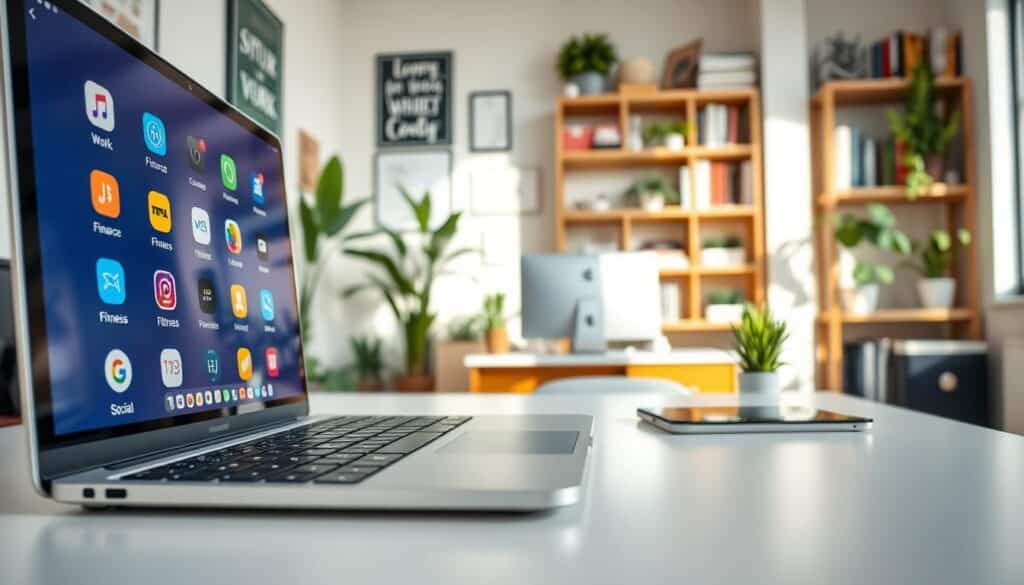
Organizing apps starts with clear top-level buckets that match daily routines. Simple primary categories help users find tools fast. This keeps the home screen uncluttered and efficient.
Set Up Primary Categories
Create main folders that match common needs. Use Communication for Messages and Gmail. Work & Productivity suits Outlook, Google Docs, and Slack.
Finance fits banking apps and PayPal, Entertainment covers Spotify and Netflix. Utilities include Settings and Maps. Health holds Apple Health and MyFitnessPal. These groups save time searching.
Choose short and clear names. Use a single word or short phrase. Keep grouping ideas simple and easy to scan.
Create Subcategories for Specific Needs
Inside Work, add Project Management for Asana and Trello. Include Files & Notes for Google Drive and OneNote. Under Communication, use Personal for WhatsApp and iMessage, and Professional for Slack and Outlook.
Subfolders help users find apps without scrolling through many icons. Adopt naming that aids quick recognition. Short labels, emojis, or numbers work well.
Tailor categories for roles. Parents might add Kids and Education. Students use Class and Study. Freelancers need Clients and Invoices. Enterprise users require Admin and Collaboration. Categories should evolve as needs change.
Utilize Folders for a Streamlined Experience
Folders make managing many apps simpler. Good folder organization saves time hunting for tools. It helps users build reliable routines.
Group Similar Apps Together
On iOS, create a folder by dragging one app onto another until the folder appears. Name it, then drag related apps inside.
On Android, drag one app onto another, or use gestures in Samsung One UI or Pixel Launcher to make folders. Nova Launcher and Microsoft Launcher offer extra folder controls.
Group apps by function, not brand, to keep workflows smooth. For example, place Google Maps and Waze in a navigation folder.
Put Snapseed and Adobe Lightroom in a photo editing folder. Collect Amazon and eBay in a shopping folder. This method supports better task flow.
Color-Code Your Folders for Quick Recognition
Use visual cues to speed up scanning. Arrange apps so folders form color blocks on the home screen.
On iOS, add emojis to folder names for identifiable markers. On Android, install Nova Launcher to set custom icons and backgrounds for clear separation.
Choose emoji or icon themes that match folder contents. For example, use a camera emoji for photo tools, a car emoji for navigation, a cart emoji for shopping.
Color-coding trains muscle memory and supports efficient app sorting every day.
Keep Folder Depth and Size Manageable
Avoid deep nesting. One or two folder levels work best.
Too many layers add taps and slow access. Limit each folder to 6–12 apps to keep items visible without scrolling.
| Folder Strategy | How to Apply | Benefit |
|---|---|---|
| Function-Based Grouping | Place related apps such as navigation or photo editors together | Improves workflow and reduces search time |
| Color-Coding | Use emojis, icon colors, or custom folder backgrounds | Speeds visual scanning and builds muscle memory |
| Limited Folder Size | Keep folders to 6–12 apps and avoid deep nesting | Maintains discoverability and cuts extra taps |
| Launcher Customization | Use Nova Launcher or Microsoft Launcher for custom icons | Enables advanced app grouping ideas and visual control |
| Cross-Platform Consistency | Mirror folder names and colors across devices | Creates predictable layouts and faster access |
Take Advantage of Your Device’s Features
Devices have built-in tools that speed up tasks and improve app organization. Small changes give faster access to key functions. The following tips focus on widgets, shortcuts, and features that make navigation easier.
Use Widgets for Quick Access
Widgets show information without opening apps. On iOS, Home Screen widgets arrived with iOS 14. They let users add calendar views, quick notes, and media controls directly to pages.
Android provides resizable widgets that fit different layouts and sizes. Productivity apps like Google Calendar or Apple Calendar show schedule previews. Google Keep and Apple Notes let users create notes quickly.
Spotify and Apple Music offer playback controls. Placing widgets on the first home screen keeps important info visible at a glance.
Explore App Shortcuts for Efficiency
Long-press app shortcuts reduce steps to common functions. iOS and Android show actions like composing a message or starting navigation when holding an app icon. These speed up routine tasks and organize apps better.
Siri Shortcuts on iOS let users chain actions or add voice commands. On Android, shortcut widgets and pinned shortcuts launch one-tap actions like calling a favorite contact. Setting shortcuts saves time and taps.
More features help keep order. iOS App Library categorizes apps automatically. Android’s app drawer and pinned apps hide less-used icons. Gesture navigation and accessibility settings give faster access for power users.
Smartwatch integration extends control beyond the phone. Apple Watch and Wear OS let users manage timers, messages, and media without using the phone. Offloading quick tasks to a watch complements widgets and shortcuts for smoother workflow.
| Feature | Platform | Common Uses |
|---|---|---|
| Home Screen Widgets | iOS, Android | Calendar previews, note creation, music controls |
| Long-Press App Shortcuts | iOS, Android | Compose message, start navigation, quick actions |
| Siri Shortcuts / Android Shortcut Widgets | iOS, Android | One-tap routines, voice triggers, automation |
| App Library / App Drawer | iOS, Android | Automatic categorization, hide icons, pin apps |
| Smartwatch Integration | Apple Watch, Wear OS | Timers, quick replies, media controls |
Keep Your Home Screen Clutter-Free
Keeping a tidy home screen makes daily phone use calmer and faster. It helps reduce visual noise so decisions happen automatically.
This section shares practical steps for organizing apps and simple decluttering techniques you can try this week.
Limit the Number of Apps on Your Home Screen
Keep only the most-used apps and a few widgets on your main pages. A good goal is eight to twelve app icons per screen.
Users who follow this rule find fewer distractions and start tasks more quickly.
Move less-used apps into the App Library on iOS or the app drawer on Android. This keeps icons accessible without crowding prime space.
These techniques lower cognitive load and make navigation faster.
Position Apps by Usage Frequency
Arrange apps by priority and hand dominance. Put the top four to six apps within thumb reach, like in the dock or bottom row.
Common dock apps include Phone, Messages, Mail, and Browser for quick access.
Place daily productivity tools like Calendar, Slack, or Google Drive in the first row above the dock.
Secondary apps can go on later pages. Consistent placement builds muscle memory and cuts search time.
Try specialized layouts for one or two weeks. Test a single-home-screen minimal setup, separate pages by category, or work versus personal screens.
Adjust app placement based on comfort and how your tasks flow.
| Layout Style | Ideal Number of Apps | Best Use Case |
|---|---|---|
| Single-screen Minimalism | 6–10 | Users who want distraction-free focus and fast reach |
| Dock + First Row Focus | 8–12 | Balanced daily workflow with quick access to essentials |
| Pages by Category | 12–20 per page | People who prefer visual separation for work, social, and media |
| Work vs. Personal Screens | 8–15 per screen | Users needing clear boundaries between professional and private apps |
Uninstall Unused Apps Regularly
Keeping a device lean improves speed, battery life, and security. Removing unused apps frees storage and cuts background processes. This also reduces notification noise and makes the device feel snappier.
On iOS, use Offload Unused Apps to remove the app but keep documents and data. Go to Settings > App Store and enable Offload Unused Apps. Or swipe an app icon and choose Offload.
On Android, open Settings > Apps, select the app, and tap Uninstall or Disable. Some brands like Samsung add a Storage view. This view highlights seldom-used apps for quick removal.
Before removing an app, back up important data. Sync accounts with iCloud, Google Drive, or the app’s own cloud service. Export notes, photos, or chat histories when possible.
Verify login credentials for services that may be reinstalled later.
Declutter Your Device for Improved Performance
Removing apps reduces background activity and can extend battery life. It also frees storage for updates and important files. Users notice fewer crashes and smoother multitasking with good app management.
Learn to Identify Apps You No Longer Need
Look for apps not opened in 30–90 days. Check duplicates like multiple photo editors or several note apps. Find redundant tools that overlap and remove the least useful ones.
Use screen-time reports and storage settings to spot apps used very little. For apps kept for rare tasks, create a “Rarely Used” folder instead of deleting immediately. This keeps quick access while keeping the home screen tidy.
When apps are archived, review them regularly. Decide whether to keep or uninstall during scheduled checks.
Adopting clear app management strategies and regular decluttering helps long-term mobile app organization. Small, steady steps make devices easier to use and maintain.
Leverage App Tools for Personalization
Personalizing a device can make it faster and more pleasant to use. Readers should explore built-in options before adding extra software. Small tweaks in app layout settings and native widgets often yield big gains without hurting privacy or battery life.
Explore Settings to Customize App Layout
Many Android launchers let users change grid size, icon labels, and padding. Apple’s iOS offers Home Screen widgets and the App Library to reduce clutter. Productivity apps like Trello and Notion include in-app home screens or customizable toolbars to highlight important boards and pages.
Users should check Gmail and Outlook settings to pin important folders, enable swipe actions, or rearrange inbox tabs. Changing these settings brings key actions to the front, saving time and clicks.
Use Third-Party Launchers to Enhance Usability
For Android, Nova Launcher, Microsoft Launcher, and Action Launcher offer advanced folder controls, customizable gestures, icon pack support, and layout backup and restore. They allow gesture shortcuts to open folders, hide apps, or trigger searches with a swipe.
On iOS, options are limited. Widgetsmith and Shortcuts help users build custom widgets and automate quick actions. Automation tools like IFTTT, Shortcuts, and Tasker let people switch layouts based on context such as work hours or driving mode.
When trying third-party launchers or automation apps, readers should weigh privacy and performance trade-offs. Some tools request broad permissions that may affect speed or data access. Testing one change at a time helps preserve device experience while adopting good app organization practices.
Sync Apps Across Devices for Consistency
Keeping apps in sync makes switching between phone, tablet, and desktop smooth. This section explains practical steps to enable cross-device continuity. It also shows how to preserve settings and protect data with reliable cloud services.
Enable account-based syncing
Users should sign in with a Google Account on Android, an Apple ID on iOS, or a Microsoft Account on Windows. This lets app preferences, bookmarks, and saved states carry across devices. Apps like Gmail, Chrome, and Microsoft Edge sync settings automatically when the account is active.
Automatic syncing reduces setup time when moving from phone to tablet. It also helps keep folders and layouts consistent for better app organization.
Use web and desktop versions for continuity
Apps such as Slack, Google Workspace, and Microsoft 365 offer web and desktop clients. Accessing the same workspace across platforms preserves conversations, documents, and calendar items.
If an app is limited to one platform, export data or find cross-platform alternatives. This helps avoid breaking workflows when syncing apps across devices.
Turn on cloud backup before changes
Enable iCloud Backup on iOS and Google Backup on Android to save app data, documents, and preferences. OneDrive offers strong support for Windows users.
Verify backup status before deleting apps or switching devices. A recent backup ensures settings restore correctly and protects progress in productivity and creative apps.
Quick verification checklist
- Sign into the same account on each device.
- Confirm sync settings inside key apps (mail, browser, notes).
- Check iCloud, Google Drive, or OneDrive to confirm cloud backup is up to date.
- Test a restored app on a secondary device to confirm continuity.
Following these steps helps maintain steady productivity flow and supports smart app organization on phone routines. Regular checks of sync status and cloud backup prevent data loss and keep apps consistent across all devices.
Implement a Regular App Review Routine
A steady review habit keeps devices efficient and focused. Teams and individuals can set reminders to check apps, storage, and home screen layout. This practice supports clear app management strategies and reduces distraction over time.
Schedule Monthly or Quarterly App Evaluations
Set calendar alerts for quick monthly checks and deeper quarterly audits. Monthly sessions review notifications, battery drain, and recent activity. Quarterly sessions address folder structure, unused apps, and major reorganizing.
Use a simple checklist during each review: check app permissions, note last-used dates, confirm updates, back up data, and test shortcuts or widgets. Keeping this checklist in a notes app makes each session faster and more consistent.
Reflect on Your Changing Needs
Life shifts like a new job, hobby, or travel change which apps matter most. Reassess categories and move or remove apps based on frequency, utility, and security.
Tracking these changes reveals trends and helps refine decluttering techniques. Maintain a short log of changes and reasons. After a few cycles, the log shows productivity gains and highlights which strategies work best.
| Review Task | Monthly | Quarterly | Benefit |
|---|---|---|---|
| Check notifications and battery use | Yes | No | Identifies apps that drain power or create frequent interruptions |
| Verify app permissions | No | Yes | Protects privacy and reduces unnecessary access |
| Review last-used dates | Yes | Yes | Highlights candidates for removal and folder relocation |
| Confirm app updates and backups | Yes | Yes | Ensures security and preserves important data |
| Test shortcuts and widgets | No | Yes | Ensures quick access items remain useful and relevant |
| Uninstall redundant apps | No | Yes | Frees storage and improves performance through app decluttering techniques |
| Update folder layout and categories | No | Yes | Improves reachability and reinforces app management strategies |
Get Creative with App Organization Strategies
Creativity can turn a cluttered device into a tool that supports focused work and easy access.
Try small experiments, record results, and adapt layouts to match your real habits.
This approach makes app grouping ideas practical rather than just theoretical.
Experiment with Different Layouts
Try several layouts for one to two weeks each to see which improves speed and lowers distraction.
Test a minimalist single-screen layout, a category-per-page setup, a dock-centric arrangement, and role-based designs like Work, Personal, or Travel.
Use simple A/B testing: swap layouts and note the time to open essential apps and interruptions.
Keep a short log with one sentence per day to compare your results.
Document the winning layout and any tweaks you make.
Small changes like moving the calendar to the dock or creating a focus home screen often yield big gains.
Find Inspiration from Productivity Blogs
Look for case studies and layout tours from Lifehacker, The Verge, Wired, MacRumors, and Android Central.
Productivity creators on YouTube and Medium often share before-and-after screens that spark useful ideas.
Adapt ideas rather than copying them directly.
If a layout from a writer on Medium improves their workflow, apply the principle to your needs.
Replace complex folder systems with simpler color-coded grids when clarity matters more than novelty.
- Use emojis for folder names to speed recognition and add personality.
- Create visual grids by grouping apps by icon color for quick scanning.
- Make a “focus” home screen with only deep-work apps to reduce temptation.
- Build a temporary travel screen with maps, boarding passes, and transit apps.
Keep a short archive of screenshots and notes so you can return to past layouts that worked well.
This habit builds a personal library of best app organization practices and useful app organization tips.
Stay Updated with New Apps and Tools
Keeping up with new apps and tools helps people find solutions that reduce clutter and increase efficiency. Reading trusted outlets and curated app lists reveals options that combine features. This reduces the number of installs needed and improves mobile workflows.
They should follow quality sources for reliable discovery. Apple App Store’s Today tab and Google Play Editors’ Choice showcase noteworthy releases. TechCrunch, The Verge, and Mashable provide timely reviews and context to judge value before committing.
Testing new software in a limited way lowers risk. Try a trial account, create a sandbox folder, or use secondary devices to evaluate fit. Pay attention to permissions, update frequency, and developer reputation before adding an app to daily routines.
Next, scan practical trends in app design and layout. AI-powered app suggestions and smart folders help reduce decision friction. Dynamic widgets and context-aware home screens change what appears by time or location, making app organization more adaptive.
Developers offer lightweight alternatives to full installs. App Clips on iOS and Instant Apps on Android let people access features without long-term installs. These ways support leaner setups and let users test new apps without using much storage.
Evaluating privacy policies is important for long-term use. Read permissions carefully and confirm an app’s business model matches expectations. Watch for clear maintenance paths and active developer support to avoid abandoned tools that disrupt workflows.
Adopt new approaches gradually. Start with one category, like inbox consolidation or a unified task manager, and measure impact. Small experiments make it easier to adopt beneficial change while keeping app trends aligned with real needs.
Share Your App Organization Tips with Others
After refining a system for organizing apps on your phone, share your methods with peers. Sharing app organization strategies invites feedback. It sparks new ideas and makes it easier for others to adapt layouts that work in daily life.
Start a Conversation on Social Media
Post clear screenshots on platforms like X, Instagram, Reddit (r/productivity, r/iPhone, r/Android), and TikTok to show your layouts. When sharing images, blur personal info, hide account names, and crop sensitive areas to protect privacy. Use short captions that highlight folder structure or a shortcut tip; this encourages comments and quick exchanges.
Write a Blog Post About Your Experience
Document the process in a blog post or LinkedIn article with before-and-after screenshots and simple step-by-step instructions. Include measured time-savings if available and use phrases like app organization tips and mobile app organization so readers find practical examples. Clear headings and short paragraphs make the write-up easy to scan.
Join productivity forums to promote community exchange. Share templates for folder names and improve your advice based on peer feedback. Teaching others clarifies your workflow and turns organizing apps into an evolving, improving practice.