

Advertisements
Nearly 70% of students miss deadlines at least once each semester. A good digital study planner can help close this gap. This guide shows how a planner app keeps tasks, calendars, reminders, notes, and resources together.
A digital study planner is software or an online organizer that puts all a learner needs into one place. It can be a simple calendar with reminders or a full-featured app like Notion, Google Calendar, Microsoft OneNote, Todoist, Trello, or GoodNotes.
This guide is for high school and college students, graduate students, adult learners, and educators. It explains how to pick the right platform and design a useful layout. Readers will also learn how to add resources and use collaboration tools to stay accountable.
Step-by-step instructions help readers choose a study planner tool and build a custom planner. They will learn to schedule study sessions, track goals, and keep motivation high. The guide also covers how to fix common issues like syncing problems and overload.
Key Takeaways
- A digital study planner centralizes tasks, calendars, reminders, and study resources.
- Common platforms include Notion, Google Calendar, OneNote, Todoist, Trello, and GoodNotes.
- The guide is for students and educators looking for a reliable study planner app.
- Following the steps will improve time management and reduce missed deadlines.
- Outcomes include selecting the right tool, designing a planner, and maintaining consistency.
Understanding the Benefits of a Digital Study Planner
Students who use a digital study planner gain clear advantages in daily tasks and long-term success. A modern online study organizer cuts clutter and helps manage workload.
It makes planning feel intentional rather than overwhelming.
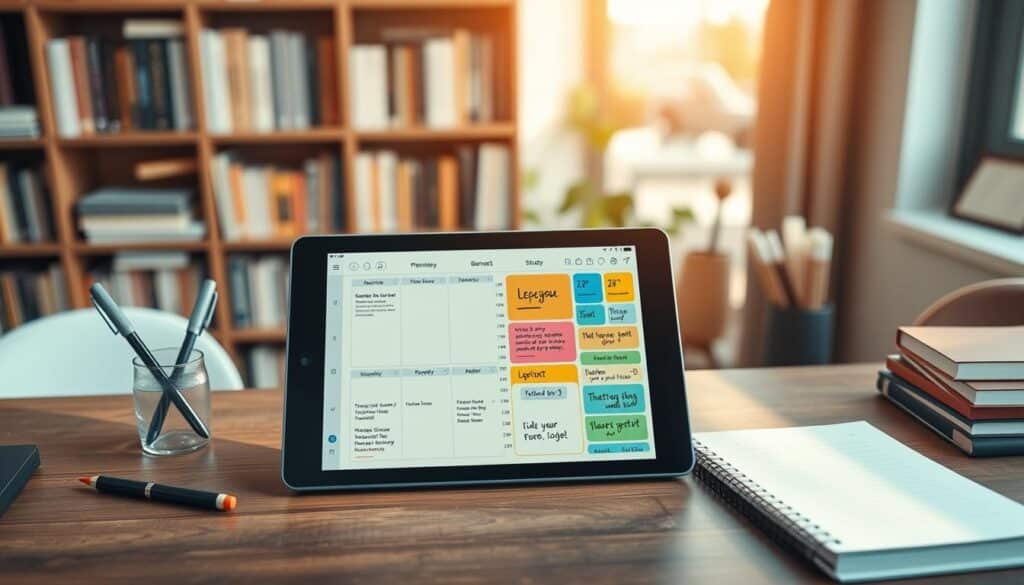
Increased Organization and Efficiency
Task lists, prioritized to-dos, and integrated calendars lower mental load by keeping deadlines in one place. Apps like Todoist and Notion let users tag items and set priorities.
They also create sub-tasks to break large projects into smaller steps. Templates and recurring tasks speed routine planning.
Using saved templates for weekly readings or lab prep saves time. This reduces the chance of missing assignments when building an academic planner.
Accessibility Anywhere Anytime
Cloud synchronization keeps notes and schedules synced across mobile, tablet, and laptop devices. Google Calendar, Microsoft OneNote, and iCloud-enabled apps like GoodNotes support this feature.
It lets students pick up where they left off on different devices. Offline access ensures study continues even in low-connectivity spots.
Cross-platform tools such as Trello and Notion offer browser-based access. This means a study planner app works well on phones or desktops.
Customization Options
Personalization features let learners tailor an online study organizer to fit their style. Custom tags, color-coding, templates, widgets, and views like board, list, or calendar help match planning to course load and learning preferences.
Integration with third-party tools creates a unified academic planner. Calendar feeds, cloud storage, and e-reader support enhance functionality.
Notion and Evernote show how custom views and saved templates adapt to different courses and study habits.
Essential Features of a Digital Study Planner
The right mix of features turns a simple calendar into a powerful study system. A digital study planner should offer clear task workflows, tight calendar links, and flexible reminders.
These elements help students manage coursework, balance deadlines, and stay on track across devices.

Task management gives structure to study work. Core task features include to-do lists, subtasks, recurring tasks, priority labels, and progress tracking.
These features let a student break large projects into steps and mark incremental wins.
Visual task layouts aid planning. Kanban or board views inspired by Trello help learners move items from “to do” to “done.”
Database-powered task systems like Notion provide custom fields, filters, and relations for course-specific workflows.
Templates for assignments, study sessions, and exam prep save time and ensure consistency.
Calendar integration keeps dates synchronized. Two-way syncing with Google Calendar or Outlook means deadlines added in a class calendar appear in the planner.
Study blocks created in the planner show up in the main calendar. Color-coded calendars let a student separate classes, assignments, and personal time at a glance.
Shared calendars support group projects and joint study sessions. Weekly and monthly views help plan chunks of work.
Time zone handling is essential for remote courses and recorded lectures so the schedule aligns with the student’s local time.
Reminder and alert systems reduce last-minute panic. Push notifications, emails, and in-app alerts provide multiple touchpoints.
Recurring reminders for regular study sessions keep habits steady, while one-off alerts focus attention on approaching deadlines.
Snooze options and escalation alerts prevent missed tasks. Integration with smartwatches and phones makes prompts hard to ignore.
Best practice suggests setting reminders well before a deadline, using countdowns for exams, and scheduling periodic check-ins to review progress.
| Feature | What it Does | Best For |
|---|---|---|
| To-do lists & subtasks | Breaks projects into steps and tracks completion | Assignment planning and study routines |
| Kanban / Board view | Visual workflow moving tasks through stages | Coursework with many small tasks and group work |
| Database task systems | Custom fields, filters, and linked records | Research projects and long-term tracking |
| Two-way calendar sync | Keeps planner and Google Calendar/Outlook aligned | Class schedules and external commitments |
| Shared calendars | Coordinate group deadlines and meeting times | Study groups and team projects |
| Push, email, in-app alerts | Multiple notification channels to prompt action | Students who switch between devices |
| Recurring reminders & snooze | Reinforces habits with flexible reminder timing | Daily study blocks and exam countdowns |
| Device integrations | Alerts on phones, smartwatches, and tablets | Mobile learners and commuters |
Choosing a study planner tool with these features helps learners build a reliable routine. A well-built app keeps tasks visible, calendars synced, and reminders timely.
This creates a complete system for academic success.
Choosing the Right Platform for Your Digital Planner
Picking a suitable platform helps students make the most of a study planner app. The right choice depends on device habits, collaboration needs, and preferred note-taking style. Matching tools well with workflow avoids wasted time and frustration.
Popular Applications to Consider
Notion offers flexible databases and templates for complex schedules. Google Calendar excels at scheduling and syncing across devices. Microsoft OneNote organizes long-form notes well, suited for heavy note-takers.
Todoist focuses on tasks with simple lists and reminders. Trello uses kanban boards to show progress visually. GoodNotes and Notability give handwritten planners on iPad for stylus users. Education-focused apps like MyStudyLife add LMS integrations and class-aware features.
Factors to Evaluate
Cost matters: many options have free tiers while premium plans provide advanced features. Cross-platform support should match the student’s devices. Offline capability ensures access during flights or commutes.
Integration with Google Workspace or Microsoft 365 prevents duplicated work. Security and privacy require attention, especially GDPR and FERPA compliance. Scalability matters for managing multiple courses.
User Experience and Interface
An intuitive UI reduces friction when adding tasks or checking a calendar. Clean navigation and clear icons lower the chance of abandoning the tool. Accessibility features like adjustable font sizes and keyboard shortcuts support diverse learners.
Responsive apps that feel fast on phones and laptops improve daily use. Trial periods allow students to test responsiveness, navigation, and customization before paying for premium features.
| Application | Strengths | Limitations | Best Use |
|---|---|---|---|
| Notion | Flexible databases, templates, strong customization | Steeper learning curve, limited offline edits | Students who want a fully custom study planner tool |
| Google Calendar | Excellent scheduling, real-time sync, free | Not ideal for detailed note-taking, basic task features | Quick scheduling within a digital learning organizer |
| Microsoft OneNote | Rich note organization, ink support, integrates with Office | Sync quirks across platforms for some users | Heavy note-takers and students using Microsoft 365 |
| Todoist | Simple task management, recurring tasks, cross-platform | Limited calendar-style planning without integrations | Task-focused users who need a light study planner app |
| Trello | Visual kanban boards, easy collaboration, drag-and-drop | Less ideal for linear calendars or deep note storage | Project-based courses and group work |
| GoodNotes / Notability | Natural handwriting, PDF annotation, ideal for iPad | Platform limits (iPad primary), syncing costs | Handwritten planners and visual learners |
| MyStudyLife / Student Planner Apps | Academic features, class-aware scheduling, LMS ties | Feature sets vary, some require subscriptions | Students wanting school-focused student planner software |
Designing Your Digital Study Planner
The layout of a digital study planner affects how students manage their time and tasks. A clear structure makes the planner easier to use. The design should balance function with a pleasing look to keep motivation high.
Setting Up Categories and Subjects
Organize by term, course, module, or subject so each class has its own project page or board. Create separate boards for lectures, labs, and readings to reduce clutter.
Use tags for exams, homework, readings, and lab work to filter tasks quickly. Import syllabi with templates for assignment tracking and grading rubrics that fit course needs.
Creating an Aesthetic Layout
Choose readable fonts and consistent spacing to improve usability. A simple color palette and uniform header sizes create a calm visual hierarchy.
Build reusable templates for weekly planning. Look for community-made layouts in Notion and Trello for ideas when using a study planner app.
Incorporating Visual Elements
Use color-coding, icons, progress bars, and cover images to help users scan and stay motivated. Visual markers speed navigation in an online study organizer.
Embed timelines or Gantt charts for long-term projects with tools like Notion timelines or Trello power-ups. Add charts for study hours, grade trackers, and habit trackers to show progress.
- Keep category names short and searchable.
- Use templates for recurring tasks and exams.
- Test the layout on mobile if the planner app will be used on phones.
Setting Goals Within Your Study Planner
Clear goals guide study time and make a student planner software useful. Short-term targets keep daily momentum. Long-term goals map out the semester or year.
A smart setup breaks big ambitions into small tasks. These tasks fit a study schedule app or study planner tool.
Short-Term vs. Long-Term Goals
Short-term goals include daily and weekly tasks, such as reading a chapter or preparing for a quiz. These goals are quick to complete.
Long-term goals include semester GPA targets and final project milestones. Breaking these into smaller milestones makes progress visible and easier to reach.
Examples are daily reading goals, weekly review sessions, and semester research checkpoints. Each can be recorded in a digital study planner and tied to deadlines.
SMART Goal Framework
The SMART framework turns vague hopes into clear objectives. Goals should be Specific, Measurable, Achievable, Relevant, and Time-bound.
For example: “Complete three calculus problems daily for four weeks.” This meets all SMART criteria and fits study schedule apps or student planner software.
Use measurable metrics like study hours, problem sets completed, or target grade increases. The study planner tool can link these metrics to tasks and reminders.
Tracking Progress Effectively
Track progress with habit trackers, progress bars, and completion percentages in a digital study planner. Weekly reflections help spot trends and needed changes.
Use time tracking tools like Toggl or built-in timers to measure study time. This data makes it easier to decide which study strategies to keep or adjust.
Review progress often, update goals, and set new milestones. This keeps the study planner tool aligned with real performance and changing priorities.
| Goal Type | Example | Metric to Track | Best Tool |
|---|---|---|---|
| Short-Term | Read one chapter; complete five practice problems | Tasks completed per day, minutes studied | study schedule app |
| Milestone | Finish literature review for term paper | Sections completed, sources logged | digital study planner |
| Long-Term | Raise semester GPA by 0.5 | Grade trends, exam scores | student planner software |
| Habit | Study focused for 25 minutes daily | Streak count, total minutes | study planner tool |
Scheduling Study Sessions
The right schedule turns effort into progress. A digital study planner helps students map classes, study blocks, exercise, and tasks to one plan.
Using a study schedule app makes it easy to color-code subjects. Reserve peak focus periods for demanding work.
The next items outline practical techniques. These help keep focus high and downtime restorative.
Time Blocking Techniques
Time blocking means setting dedicated blocks for specific tasks in a calendar. Students plan class times, assignments, and errands in fixed windows.
This method stops task overlap and reduces decision fatigue. Color-code blocks by subject using a study planner app.
Drag and drop sessions when conflicts arise. Reserve morning or evening peak periods for the hardest topics. Apps with calendar integration speed adjustments across devices.
Using the Pomodoro Method
The Pomodoro technique uses short, intense work bursts with brief rests. A common cadence is 25 minutes focus, then a 5-minute break.
After four cycles, take a longer 15–30 minute pause. Apps like Focus To-Do or Pomodone automate these cycles with timers and alarms.
Adjust intervals to fit your attention span. Some prefer 50/10 or 45/15 rhythms. Logging completed Pomodoros provides productivity metrics.
To protect focus, silence notifications. Tell roommates or classmates when you have focused windows.
Balancing Study and Break Times
Scheduled breaks, sleep, and movement improve retention and mental health. Take 10–30 minute breaks between study blocks and a longer rest midday or evening.
Use a study schedule app to set reminders for walks, meals, and wind-down time. Track energy patterns in a digital learning organizer.
Assign high-effort tasks to high-energy windows. A study planner app can store patterns and suggest optimal times. Small, regular breaks prevent burnout and sustain study sessions.
Utilizing Collaboration Features
Shared planning tools make group work clearer and faster. Teams can combine schedules, assign tasks, and keep notes in one place.
A well-chosen online study organizer or student planner software turns scattered messages into a single source of truth for classmates.
Use shareable pages, read/write permissions, shared calendars, and project boards in Notion, Google Drive, or Trello.
Share planners for group projects, overlapping deadlines, or joint study timetables. Limit access to private pages to protect personal notes. Change permissions when roles shift.
Create reusable templates for meeting agendas and task lists. Templates speed preparation and keep members aligned about responsibilities and due dates.
A study planner app with templates simplifies repeating processes for project teams.
Schedule shared study blocks and embed slides, readings, or quiz banks into collaborative pages.
Structure sessions with clear objectives, timed activities, and defined roles like presenter, question lead, and note taker.
This makes group time efficient and focused.
Link video calls and whiteboards to the planner for smoother remote sessions.
Google Meet and Zoom handle conferencing needs, while Miro and Jamboard help with visual collaboration.
A digital study planner supporting these integrations reduces friction during group work.
Form accountability partnerships to set mutual goals and plan check-ins.
Post progress updates. Use planner reminders and shared habit trackers to reinforce commitments.
Weekly review meetings and mutual deadline checks keep momentum steady.
Keep ongoing communication in Slack or Discord for quick updates tied to planner tasks.
These platforms work well with student planner software to deliver fast status reports and prompt questions.
Pairing a communication channel with a digital study planner improves consistency.
Incorporating Additional Resources
Students who build strong study systems add extra resources into their digital workflow. A well-organized digital learning organizer turns scattered PDFs, lecture clips, and textbook highlights into a single reference hub. This method improves retrieval speed and cuts down time wasted searching for materials.
The first step is linking useful content directly into planner entries. Embed PDFs, add Google Drive documents, and reference course pages from Khan Academy or Coursera. Tag links by course and topic, add short annotations, and note timestamps for videos. Regularly check links to prevent broken references and keep the study planner reliable.
Links to Online Materials
Organize links with clear names like Course_Subject_Date. Use folders or tags to separate readings, problem sets, and recorded lectures. Add brief notes for context to speed up future reviews. Set monthly reminders in the study planner app to verify links and remove outdated files.
Integration with E-Readers
Sync annotated ebooks from Kindle, Apple Books, or Kobo with the digital study planner. Export highlights as PDFs or text and import them into OneNote, GoodNotes, or Notion. Link passages to assignments or calendar events to match your reading with study sessions.
Pay attention to file formats since EPUB and PDF behave differently when imported. Convert formats if needed and check compatibility before relying on any workflow.
Digital Note-Taking Tools
Use both typed and handwritten notes depending on the task. Notion and OneNote are great for searchable, linked notes. GoodNotes and Notability suit handwritten diagrams. Use OCR on scanned pages and tag key ideas for fast retrieval in the digital organizer.
Connect notes to tasks and calendar events so references appear where they matter. Record lectures when allowed and attach audio files to notes. This hybrid method boosts recall and keeps the digital study planner centralized and useful.
Maintaining Motivation with Your Planner
Keeping momentum needs clear rewards, regular reflection, and space to adjust plans. A study planner app can help by tracking wins and logging insights.
It also makes changes simple. The tips below help students use an academic planner or online organizer to stay engaged without burning out.
Setting Rewards for Achievements
Behavioral reinforcement works best with small, frequent rewards after short tasks and bigger treats for long-term goals.
The planner can mark milestones and trigger rewards when a checklist is complete. For example, set a notification to celebrate finishing a reading block with a 10-minute walk.
Build reward indicators into a digital study planner using custom icons, badges, or progress-based checklists.
Align rewards with realistic milestones so they stay motivating. A modest snack or social call after a session helps as much as saving a bigger purchase for steady progress.
Reflecting on Progress
Schedule weekly or monthly reflections in the academic planner to review tasks, study hours, and grades.
Use prompts like: What worked? What needs adjustment? Which techniques helped most? Short answers make reflection easy to repeat.
Log insights in the online study organizer to build a growth record. Over time, these notes reveal patterns for smarter planning.
Recording progress boosts confidence and makes it easier to adjust schedules.
Staying Flexible with Changes
Life and course loads change. A digital study planner should support quick rescheduling, reprioritizing, and goal updates.
Create buffer blocks and contingency plans for high-stress times like midterms or finals.
When plans shift, move blocks instead of abandoning them. Use the planner to tag tasks by priority and add backup slots for urgent work.
| Motivation Strategy | How to Implement in a Planner | Benefit |
|---|---|---|
| Micro-rewards | Create checklist triggers and custom icons in the digital study planner for short tasks | Increases short-term focus and habit formation |
| Periodic reflection | Schedule weekly notes in an academic planner with three prompt fields: wins, challenges, next steps | Improves learning through regular review |
| Flexible scheduling | Reserve buffer slots and use drag-and-drop rescheduling in the online study organizer | Reduces stress during busy weeks and maintains consistency |
| Progress badges | Assign badge levels for cumulative hours or completed modules in a study planner app | Visual motivation that tracks long-term achievement |
Troubleshooting Common Issues
The most common problems with a digital study planner include syncing errors, lost data, and too many features.
Readers need clear steps to solve these issues. This will help their planner software work well and stay focused on learning goals.
Syncing failures often happen because of outdated app versions, weak internet, mismatched accounts, or calendar conflicts.
First, update the study schedule app on every device. Make sure the same account is active on phone, tablet, and laptop.
Force a sync or redo calendar connections if items don’t appear. Clear the cache if problems continue and check that all devices share the same time zone.
If these steps don’t solve the problem, contact vendor support. Notion Help Center, Google Workspace support, and Microsoft Support offer help for account and calendar issues.
They can assist with conflicts that a simple refresh can’t fix.
Syncing Problems Across Devices
- Update app versions across devices.
- Confirm identical account credentials on every device.
- Force-sync or reauthorize calendars and third-party integrations.
- Clear cache and check time-zone consistency.
- Escalate to platform support if sync errors persist.
Backup planning helps avoid panic after accidental deletions or data corruption.
Use automatic cloud backups built into the student planner software when possible. Export important data often in formats like CSV, PDF, or markdown.
Notion, OneNote, and Google Takeout offer export options that fit most workflows.
Store exported files in secure places like Google Drive, Dropbox, or an external hard drive. Keep version history if the platform supports it.
For recovery, check the trash or recycle bin in the planner tool. Contact platform support for account restores if needed. Use a local backup when cloud recovery is not possible.
Backup and Data Recovery
- Enable automatic cloud backups in settings.
- Export data periodically to CSV, PDF, or markdown.
- Keep exports in Google Drive, Dropbox, or external storage.
- Use version history to recover prior states.
- Search app trash and contact support for restorations.
Too many plugins, integrations, or complex templates can cause overwhelm. This may lead to procrastination or feeling stuck.
Start by reducing the planner to core features: tasks, calendar, and reminders. Turn off add-ons you don’t need and use a simple template.
Add features slowly. Introduce one integration at a time and test how it affects productivity. Wait a week before adding another feature.
This steady approach helps students master the planner without losing focus.
Overwhelm from Too Many Features
- Begin with core tools: tasks, calendar, reminders.
- Disable or remove nonessential plugins and integrations.
- Apply a minimal template and declutter layouts.
- Add one feature at a time and monitor productivity for a week.
- Keep a simple checklist of active integrations to avoid creep.
| Issue | Quick Fixes | When to Contact Support |
|---|---|---|
| Sync Failures | Update app, verify account, force-sync, clear cache, check time zone | Persistent conflicts after reauthorization or cross-account errors |
| Lost or Corrupt Data | Enable cloud backup, export CSV/PDF/markdown, check trash | Missing backups or failed restores from cloud storage |
| Feature Overload | Disable add-ons, switch to minimal template, add features gradually | When performance lags or task paralysis remains after declutter |
| Calendar Conflicts | Reauthorize calendar, unify calendar providers, check permissions | Duplicate events or persistent mismatches across devices |
| Account Mismatch | Sign out and sign in with correct credentials, unify emails | Access denied or multiple accounts causing data split |
Personalizing Your Digital Study Planner
Personal touches make a digital study planner feel like a second brain. Small adjustments to color, content, and layout help learners stay engaged. They make the planner reflect real study habits. The right setup supports focus without clutter.
Themes and color schemes
Choose palettes that boost readability and convey meaning. Use color-coding by subject or priority so tasks are found faster. Pick high-contrast combinations for text and backgrounds to aid legibility.
Avoid problematic pairs for color-blind users, such as red-green blends. Use font size and weight to build hierarchy for headings, tasks, and notes.
Notion and Trello offer built-in themes and allow custom covers and icons. Many mobile apps let users import images and icons to personalize dashboards. Importing clean, consistent icons keeps the layout tidy while reinforcing categories.
Adding inspiring quotes
Place short motivational quotes or affirmations on dashboard pages to lift morale. Match quotes to weekly themes or goals to tie inspiration to tasks. Rotate lines weekly to keep the dashboard fresh.
Pair quotes with a subtle visual cue, such as a muted banner or icon, to avoid visual noise. Keep motivational text concise and link it to an actionable item like a checklist or micro-goal.
Customizing for learning styles
Tailor the planner to visual, auditory, reading/writing, and kinesthetic preferences. Visual learners benefit from diagrams, color highlights, and embedded images. Auditory learners gain more from audio clips or lecture recordings.
Reading/writing learners prefer clear written summaries and structured checklists. Kinesthetic learners do better with task-driven steps and interactive to-dos.
Integrate spaced-repetition tools such as Anki decks or Quizlet sets to support memory retention. Embed video clips for tutorials and link audio notes for review. Track which formats yield better recall and adjust the layout in the planner.
Use a simple tracking table to compare formats and outcomes. This helps optimize the study planner app based on what improves retention.
| Learning Style | Planner Elements | Suggested Tools |
|---|---|---|
| Visual | Diagrams, color codes, mind maps | Notion pages, Trello boards, embedded images |
| Auditory | Audio notes, lecture clips, voice summaries | Study planner app with audio uploads, mobile recorders |
| Reading/Writing | Detailed notes, checklists, written summaries | Digital study planner pages, markdown notes |
| Kinesthetic | Step-by-step tasks, interactive checkboxes | Task-focused academic planner features, Pomodoro timers |
Tips for Staying Consistent
Building steady habits around a digital study planner requires small, repeatable actions. Create a short planning ritual. For example, do a 10-minute nightly review to update tasks and set priorities, or a Sunday session to map the week.
Link planner use to an existing habit, like after breakfast or before your first class. This way, using a study planner app becomes automatic, not optional.
Establishing a Routine
A routine anchors progress. It should include fixed study blocks, clear priorities, and a quick checklist each day.
For example, a student might block two 45-minute sessions after lunch. They use the study schedule app to track these blocks. Repeating the same pattern helps reduce decision fatigue and keeps the workload visible.
Checking In Daily or Weekly
Daily check-ins are brief updates. Mark completed tasks, adjust one or two priorities, and note any obstacles.
Weekly reviews go deeper. Use a short checklist that covers tasks done, deadlines coming up, study hours logged, and any changes needed. If the online study organizer offers analytics, use them to spot productivity patterns.
Evaluating and Adjusting Your Approach
Consistency grows when the plan adapts. Periodically review performance data and make changes. You might adjust time-block lengths, try Pomodoro variations, or simplify the planner layout.
Run simple A/B tests—compare two schedules for a week. Record the outcomes in the digital study planner. Small adjustments lead to better academic results over time.