
Advertisements
Nearly 85% of Americans check their smartphones within 15 minutes of waking up. This shows how central mobile devices are to daily work routines. They also play a big role in study habits.
This short how-to guide shares practical, evidence-based mobile productivity tricks. These tips save time for professionals, students, and remote workers in the U.S. It focuses on workflows for both iOS and Android devices.
The guide recommends apps, time-management tools, device settings, automation, collaboration tools, and habits that protect health. It helps users improve efficiency on smartphones and tablets.
This step-by-step guide aids readers in boosting mobile productivity during commutes, remote work, or hybrid office schedules. It covers key concepts and workspace setup. It also teaches time-blocking, voice assistants like Siri and Google Assistant, and automation with IFTTT and Zapier.
Readers will learn quick smartphone hacks and how to organize mobile workflows. It provides specific app suggestions, such as Todoist, Trello, Evernote, OneNote, Slack, and Microsoft Teams. The content is device-neutral but notes platform differences like iOS Shortcuts and Android widgets. This lets readers apply tips right away.
Key Takeaways
- Practical mobile productivity tricks help save time across work and study routines.
- The guide covers iOS and Android workflows, plus cross-platform app recommendations.
- Readers will find smartphone productivity hacks and time-management apps to implement right away.
- Topics include workspace setup, automation, collaboration, and health-focused habits.
- The structure moves from basics to advanced tactics for continuous mobile efficiency gains.
Understanding Mobile Productivity
Mobile productivity means using smartphones and tablets to complete work and manage tasks with speed and clarity.
It covers task capture, scheduling, short focused sessions, note-taking, document access, and quick communication.
The goal is to make small wins during commutes and between meetings to keep longer work blocks uninterrupted.
What is Mobile Productivity?
Mobile productivity centers on doing real work on handheld devices. It relies on fast task capture and syncing across devices.
Apps that work well together help users adapt to touch input and limited screen space. They must handle frequent interruptions.
Core components include quick context switching, offline/online syncing, cross-device continuity, and app interoperability.
Using push notifications and concise note systems reduces friction when switching from phone to laptop.
Why It Matters in Today’s World
Remote and hybrid work have increased the need for mobile tools in email, meetings, and collaboration.
Teams use phones to triage issues, approve decisions, and keep projects moving when desktops are unavailable.
This trend makes mobile organization tips and efficient mobile work habits essential for professionals and freelancers.
Short focused sessions save time by clearing small tasks during transit or breaks.
Better mobile practices can reduce email backlogs, speed decision-making, and lower cognitive load through clearer organization.
Security matters; device passcodes, biometrics, and app permissions protect business and personal data.
Streamlining Your Workspace on Mobile
A tidy mobile layout cuts friction and saves time. Small changes to the home screen, folders, and widgets help. They make the phone easier to use.
Readers learn simple mobile organization tips and smartphone productivity hacks. These tips help boost productivity on mobile devices.
Organizing Your Home Screen
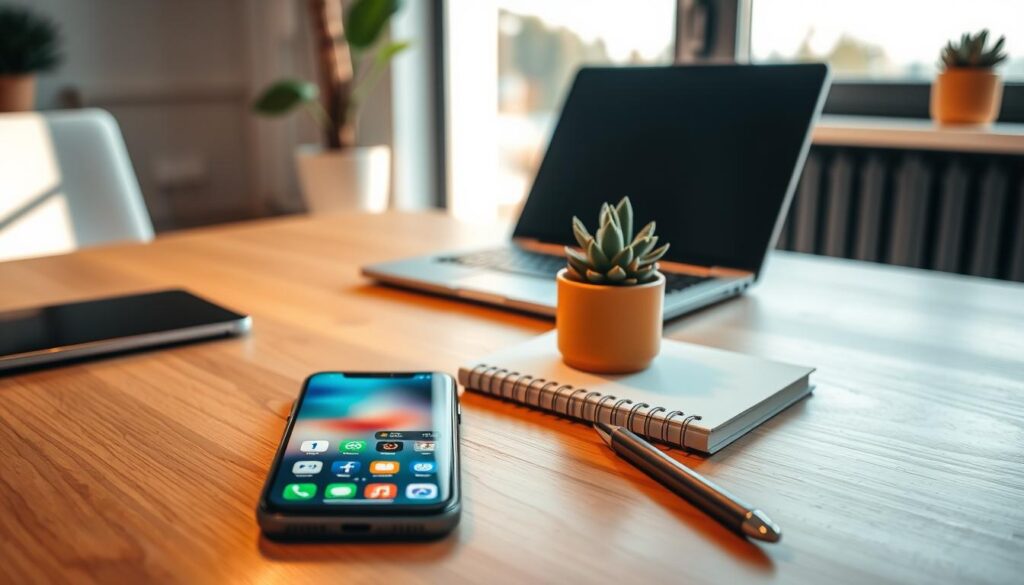
Limit home screens to the apps you use most. Keep one or two extra pages to avoid hunting for apps. Place communication and productivity apps like Mail, Calendar, Messages, and Todoist in the dock for one-tap access.
Use a consistent layout so muscle memory guides app taps. Put calendar, email, task manager, and note apps in the same spots on all devices. Rely on app search—Spotlight on iOS or App Search on Android—when a quick lookup is faster.
Perform a monthly home screen audit. Remove apps not used in 30 days. This habit reduces clutter and saves seconds per action, boosting productivity.
Utilizing Folders and Widgets
Group related apps into folders with clear labels like Work, Meetings, and Social. Limit folder contents to six to nine apps. Short lists help users scan quickly.
Add widgets for glanceable info. Calendar widgets show upcoming events. Task widgets let users add or check tasks without opening an app. Note widgets enable quick capture of ideas. Both iOS and Android Widgets support these uses.
Choose widgets that allow immediate actions: start a timer, add a task, or jot a note right from the home screen. On Android, advanced users can install Nova Launcher for gestures and control. Matching layout habits across iPhone and Android keeps access consistent for people switching devices.
Below is a quick comparison to guide setup choices and enforce practical smartphone productivity hacks.
| Setup Area | Best Practice | Why It Works |
|---|---|---|
| Home Screen Count | One primary page + dock | Reduces search time and leverages muscle memory |
| Dock Contents | Calendar, Email, Messages, Task app | One-tap access to core communication and planning tools |
| Folders | 6–9 apps per folder; clear labels | Speeds visual scanning and keeps categories focused |
| Widgets | Use actionable widgets: calendar, tasks, notes | Provides glanceable info and quick actions without opening apps |
| Search vs. Manual | Use Spotlight or App Search for rare apps | Saves time compared with swiping through screens |
| Maintenance | Monthly audit to remove unused apps | Keeps workspace lean and preserves productivity gains |
Essential Productivity Apps to Boost Efficiency
Choosing the right apps can change how work gets done on a phone. This section compares popular tools for task lists, notes, and team chat.
Readers will learn when to pick lightweight apps and when to choose full-featured platforms for mobile productivity.
Task Management: Todoist vs. Trello
Todoist fits users who want fast capture and clear to-do lists. It accepts natural-language input and handles recurring tasks.
It offers priorities, labels, and filters that sync across Android and iOS. Mobile widgets and quick-add features make it a top app.
Trello uses kanban boards for visual workflows. Cards, checklists, labels, and Power-Ups make it strong for collaborative projects.
Teams can track multi-stage work on mobile without losing context. Trello pairs well with calendar integration and automation tools for shared planning.
Recommendation: pick Todoist for personal task flow and Trello for team project tracking. Integrate either with calendars to turn deadlines into events.
Note-Taking: Evernote vs. OneNote
Evernote excels at searchable notes and web clippings. Optical character recognition finds text inside images and PDFs.
The mobile app supports quick capture, voice notes, and attachments, making it useful for research-heavy users who need organized content on the go.
OneNote provides a flexible notebook and page layout with deep Microsoft 365 integration. Handwriting, multimedia pages, and free-form sections suit users who prefer analog feel with cloud sync.
OneNote is attractive for people who rely on Word, Excel, and Outlook in their workflows.
Recommendation: choose Evernote for clip-heavy, searchable notes. Choose OneNote for free-form notes and tight Office integration. Both benefit from quick-capture shortcuts.
Communication: Slack vs. Microsoft Teams
Slack offers lightweight channels, threaded conversations, and extensive third-party integrations.
Its mobile notifications and quick actions support fast asynchronous communication. Small teams and startups often favor Slack for rapid chat and app-driven workflows.
Microsoft Teams combines chat with file collaboration in OneDrive and SharePoint. Built-in video calls and calendar links make it practical for Microsoft 365 users.
The mobile client brings meetings, chats, and files into one place for on-the-go collaboration.
Recommendation: match the app to the organization’s ecosystem. Tweak notification settings and set Do Not Disturb schedules to reduce interruptions.
Linking messages to task apps or saving conversations to note apps creates a smoother handoff between communication and execution.
Practical integration tips
- Link task apps to calendar services to visualize deadlines and daily plans.
- Use note app quick-capture shortcuts for instant ideas and receipts.
- Enable offline access for critical notes and tasks when connectivity is unreliable.
- Install web clippers or share extensions to save content directly to notes or task lists from mobile browsers.
Time Management Techniques for Mobile Users
Mobile users who want to get more done need clear techniques that work well on a phone. The right approach turns scattered taps into steady progress.
This section shows practical steps for focused work, scheduling, and measuring results using familiar tools and easy workflows.
Pomodoro on the phone
The Pomodoro method uses 25 minutes of focused work followed by a 5-minute break. It fits perfectly into short mobile sessions and helps fight distraction.
Apps like Focus To-Do, Forest, and Be Focused let users start timers, log completed pomodoros, and visualize streaks.
Use Pomodoro for small tasks, email triage, and study sessions. Disable nonessential notifications or use Do Not Disturb or Focus modes before starting.
Tracking completed pomodoros builds momentum and shows progress over days and weeks.
Time blocking with calendar apps
Time blocking assigns specific calendar slots to task types such as deep work, email, and meetings. Google Calendar, Apple Calendar, and Microsoft Outlook handle recurring blocks and color coding.
Integrating Todoist or Trello items into a calendar view makes task timing more realistic.
On mobile, create recurring blocks, color-code event types, and add calendar widgets for quick visibility. A practical daily flow reserves morning for deep work, midday for meetings, and late afternoon for admin.
Include short buffer blocks to absorb overruns and protect focus.
Combine techniques for stronger focus
Users can run Pomodoro cycles inside time blocks to preserve momentum during deep work. Set calendar notifications to mark the start and end of blocks.
A weekly planning session on mobile or desktop helps lock in recurring blocks and keeps devices in sync.
Measure and adjust
Track time with RescueTime or built-in Screen Time and Digital Wellbeing to find distraction windows. Use that data to shift blocks and test different rhythms.
Mobile multitasking strategies improve when users pair measurement with small schedule tweaks.
Quick toolkit
- Time management apps: Focus To-Do, Forest, Be Focused, Todoist integration
- Calendar choices: Google Calendar, Apple Calendar, Microsoft Outlook
- Tracking tools: RescueTime, Screen Time, Digital Wellbeing
- Phone settings: Do Not Disturb, Focus modes, calendar widgets
Smartphone productivity hacks that combine timed sprints, structured blocks, and regular review make mobile work more reliable. These methods reduce context switching.
They help users turn short bursts of attention into steady output.
Leveraging Voice Assistants for Efficiency
Voice assistants turn quick commands into real work. They manage timers, reminders, notes, calls, and app controls. You can use them without touching the screen.
They are great mobile productivity tools for busy people needing hands-free options.
Setting up smart voice routines saves time and reduces friction. Shortcuts and routines group actions into a single phrase.
This is a practical smartphone productivity hack for morning briefings, commute updates, and work sessions.
Siri works smoothly across iPhone, iPad, and macOS. It can create reminders, send texts, schedule events, and enable Focus modes.
Siri also runs Shortcuts automations. Users can add items to Reminders or Todoist and use dictation to capture notes in Notes or Evernote.
Best practice for Siri is to build Shortcuts for repeated workflows. A phrase like “Start work session” can enable Focus, open a playlist, and begin a Pomodoro timer.
Enable “Hey Siri” and train your pronunciation for better recognition. These steps help boost productivity on mobile devices.
Google Assistant excels on Android and in Google Workspace. It sets reminders, creates calendar events, sends messages, and controls smart home devices.
Assistant Routines deliver combined actions, such as calendar overview, commute time, and top tasks for the day.
For quick content capture, voice typing into Google Keep or Google Docs is fast and accurate. Integrate Assistant with Android widgets and shortcuts to trigger tasks from the home screen.
These methods are core smartphone productivity hacks for people who need to record ideas on the move.
Cross-platform advice helps teams and individuals pick the right assistant. Choose Siri for deep Apple ecosystem ties and Google Assistant for Google Workspace integration.
Use voice commands for accessibility and hands-free productivity during commutes, workouts, or multitasking.
| Feature | Siri (Apple) | Google Assistant (Google) |
|---|---|---|
| Core Strength | Deep iOS and macOS integration, Shortcuts automation | Strong Android support, Google Workspace and smart home control |
| Key Actions | Create reminders, send texts, start Focus, run Shortcuts | Set reminders, create events, send messages, execute Routines |
| Best Use | Hands-free productivity for Apple users, app automations | Fast capture and workspace actions for Android and Google users |
| Voice Typing | Dictation into Notes, Evernote, and apps that support text input | Voice typing in Google Keep and Google Docs with high accuracy |
| Automation | Shortcuts for repeated workflows like work sessions and timers | Routines for morning briefings, commutes, and task overviews |
| Integration Tips | Enable “Hey Siri”, train voice, link Todoist and Reminders | Use Assistant with widgets, integrate Google Calendar and Drive |
| How it helps | Reduces friction, speeds common tasks, supports hands-free use | Streamlines routine actions, improves quick capture, saves time |
Automating Tasks with Mobile Apps
Automation removes small, repetitive chores from a mobile workday. This frees attention for tasks that matter more.
Readers will learn how simple rules and mobile tools link services and trigger actions. These keep routines running smoothly.
IFTTT targets consumers with an intuitive experience and one-step applets. Zapier serves teams with multi-step Zaps and business-grade integrations.
Both platforms offer mobile apps and web interfaces. This lets users monitor and edit automations on the go.
Typical setup follows a flow: a trigger like an email starts a chain. Then an action creates a task or sends a message.
It is best to authorize accounts with limited permissions. Testing each automation before relying on it is also important.
Common uses include auto-saving email attachments to Google Drive or OneDrive. Tasks can be created from starred Gmail messages or Slack posts.
Teams can post meeting notes from Evernote or OneNote into Slack or Microsoft Teams channels instantly.
Mobile-specific automations expand possibilities. iOS Shortcuts combine screenshots into a PDF or send ETA messages.
They can also launch a playlist and Pomodoro timer together. Android users use Tasker or MacroDroid for device controls.
These apps toggle Wi‑Fi when arriving at the office. Location-based automations set Focus mode or mute notifications upon arrival at work.
Backing up mobile photos to cloud storage protects memories without manual effort. This setup is a frequent choice.
Automation reduces repetitive tasks and context switching. This supports many mobile productivity tricks.
However, it needs periodic review for privacy, security, and relevance. Teams should audit connected accounts and remove outdated permissions when needed.
Mixing automation apps with top productivity apps—like Todoist, Trello, Evernote, and OneNote—creates an ecosystem.
This ecosystem saves time and keeps work moving forward.
Managing Notifications for Focus
Notifications can fragment attention and increase task-switching costs. Managing them carefully helps people focus better and lowers cognitive load.
Small changes to alerts bring big gains in concentration and productivity for those who rely on their phones for work and life.
Practical setup starts with system tools on iOS and Android. Creating profiles or schedules helps limit interruptions during deep work.
Teams that adopt shared expectations about notifications see fewer false urgencies and clearer communication.
Setting Up Do Not Disturb
On iOS, use Focus Modes to create custom profiles like Work, Sleep, and Personal. Allow only selected apps and people.
Set automatic schedules and add location triggers to tailor focus periods. Focus filters hide home screen pages and restrict app access.
This reduces temptation and helps maintain your focus more easily.
Android’s Do Not Disturb and Digital Wellbeing offer priority exceptions and scheduled downtime. Bedtime mode and third-party apps add extra control.
A “Deep Work” profile that silences email and social apps but allows calendar alerts and key calls works well for many users.
Prioritizing Essential Alerts
Start with an audit. Find apps that need immediate attention, like calendar events, security alerts, or messages from core teammates.
Mute or silence apps that do not require instant responses to reduce distractions.
Use app settings to disable badges, sounds, or banners for low-priority apps. Configure Slack and Microsoft Teams to send only important channel notifications.
Scheduled summaries on iOS and bundled notifications on Android let people review less urgent items on their own time.
Encourage team norms such as status messages to set response expectations. Use Screen Time or Digital Wellbeing to track interruptions and adjust rules.
Small, repeatable habits create efficient mobile work routines and support long-term focus.
Optimizing Your Device’s Settings
Reliable devices are key for mobile productivity. Small changes to battery, storage, and security help keep work going smoothly. The tips below share practical changes to boost your mobile work habits.
Battery Life Saving Techniques
Reduce screen brightness and turn on auto-brightness to save power. Turn off background app refresh for apps that don’t need constant updates. Limit location services and use Wi‑Fi instead of cellular when possible.
Use Low Power Mode on iPhone or Battery Saver on Android to extend battery life. Check settings to find apps that drain power. Restrict background activity for apps you use rarely.
Carry an external battery pack or fast charger for quick power boosts during travel. Enable optimized battery charging on iPhone to protect battery health. Restart your device sometimes to stop apps that drain battery.
Data Management Tips
Clear app caches and offload unused apps with iOS Offload Unused Apps or Android storage cleanup. Move photos and videos to Google Photos or iCloud to free local space. Check downloads and large files often to reduce clutter.
Restrict background data for heavy apps and turn on data saver modes to lower cellular use. Use Wi‑Fi for backups and big downloads. Monitor your carrier usage to avoid extra charges.
Set automatic cloud backups with iCloud or Google Drive. Keep your operating system and apps updated for secure and reliable storage.
Turn on device encryption and use strong authentication like Face ID, Touch ID, or fingerprint unlock. Limit widgets and live wallpapers. Choose lighter apps when full-featured ones cause lag.
These small changes boost performance and help create efficient mobile work habits that improve your overall mobile organization.
Quick Checklist
- Lower screen brightness and enable Low Power/Battery Saver.
- Restrict background refresh and limit location access.
- Offload unused apps, back up media to Google Photos or iCloud.
- Use Wi‑Fi for backups, enable data saver, monitor carrier usage.
- Enable encryption, strong authentication, and keep software updated.
Mobile Collaboration Tools for Teams
Distributed teams rely on mobile tools to coordinate tasks and share files when away from desks. These apps help keep conversations flowing smoothly.
Choosing the right apps and team habits keeps momentum strong. It also limits unnecessary interruptions for everyone involved.
Best practices for remote collaboration
Set clear communication rules. Teams should decide on response times and when to use channels or direct messages.
Shared calendars and status updates show availability. This reduces guesswork and confusion about who is free or busy.
Design workflows to support asynchronous work. Use Google Docs or Microsoft 365 for live editing and Trello or Asana to track tasks.
Agendas and assigned action items make meetings shorter and follow-ups easier. This helps keep everyone on the same page.
Protect deep work by scheduling no-meeting blocks. Rotate meeting times for global teams to suit different time zones.
Encourage Focus or Do Not Disturb modes. These help members finish tasks without constant distractions or pings.
Tools to consider for enhanced communication
Slack offers channels, threads, and app integrations. It suits quick mobile updates and supports asynchronous teamwork well.
Microsoft Teams combines chat and video with Microsoft 365. This allows seamless file access in large company settings.
Google Workspace includes Gmail, Chat, Drive, and Meet. These tools support document collaboration and conversations on phones.
Dropbox and Box provide cross-platform file access. Evernote and OneNote help teams share and organize notes efficiently.
For project tracking, use Asana, Basecamp, or Trello. Their mobile apps offer push updates, comments, and task assignments.
Train team members in offline editing and notification settings. This makes collaboration tools more reliable when internet is weak.
Team-level automations can route updates into task boards. Comment-based triggers reduce manual handoffs and save time.
Regularly review top productivity apps for mobile. Choose tools that boost productivity without adding complexity for the team.
Staying Healthy While Being Productive
Long stretches of mobile work can strain your neck, eyes, and wrists. Small changes in posture and accessory choices help keep energy and focus high. These steps make smartphone productivity hacks work better over time.
Ergonomic Tips for Mobile Use
Hold your device at eye level when you can. This helps avoid neck strain. Use a tablet or phone stand for reading and long video calls.
Support your forearms on a desk to reduce shoulder tension. Choose Bluetooth headsets or AirPods for hands-free calls. Use a stylus on an iPad or Samsung Galaxy Tab to improve precision and reduce tapping.
Pair your phone with a portable keyboard and laptop stand for longer tasks. Enable voice dictation for lengthy messages. Try swipe typing to ease thumb strain.
On larger tablets, use split keyboards or landscape mode. These spread typing across both hands. These tips keep comfort and speed balanced while multitasking.
Scheduling Breaks and Stretching
Take short breaks often: five minutes every 25 to 30 minutes resets focus well. Use simple timers or screen time controls on iOS and Android to remind you to stand and hydrate.
Follow the 20-20-20 rule for eye comfort: every 20 minutes, look 20 feet away for 20 seconds. Add neck rolls, shoulder shrugs, and wrist stretches during breaks to reduce injury risk.
Set limits for after-hours availability using Focus modes on iOS or Do Not Disturb on Android. Take occasional digital detox hours or days to lower mental fatigue. This refreshes your productivity when you return to work.
Mobile health apps and reminders help you move regularly. These small habits build healthy routines and keep you productive while multitasking on mobile devices.
Continuous Learning on the Go
Mobile devices turn short pockets of idle time into chances for steady growth. Using focused, bite-sized sessions helps learners build skills without changing routines.
This style of continuous learning helps professionals reinforce knowledge. It also supports applying skills in daily workflows.
Audiobooks and Podcasts for Skill Building
Audiobook and podcast platforms like Audible, Apple Books, Spotify, and native podcast apps offer leadership lessons, business books, and technical deep dives. These are ideal for commutes and busy schedules.
Users should create curated playlists on topics like time management and industry news. Using sleep timers can help manage listening time well.
Pausing to capture highlights in Evernote or OneNote improves retention. It also turns insights into action items for later use.
Recommended Learning Apps for Mobile Users
Microlearning apps such as Duolingo, Coursera, Udemy, and LinkedIn Learning provide short lessons and offline downloads for learning anywhere. These apps suit a range of learners.
Creative and STEM learners benefit from Skillshare, Brilliant, and Khan Academy. Blinkist, TED, and Pocket help break long content into manageable parts.
These productivity apps pair well with calendars and task managers. They help schedule study blocks and track progress efficiently.
To boost productivity, combine listening and microlearning with immediate application. Turn takeaways into tasks or experiments and track completion rates closely.
This practical loop—learn, apply, review—makes mobile learning measurable and impactful. It supports consistent growth in skill development over time.