
Advertisements
One in three Americans has faced a data breach or online account compromise recently. Reports from the Federal Trade Commission and CISA show digital risks are common. This article shares practical safety habits to lower risks of identity theft, malware, and scams.
Technology safety habits are daily routines and tools that keep devices and information secure. They include making strong passwords, using password managers, and enabling multi-factor authentication. Safe browsing, updating software, and controlling app permissions also help.
These habits reduce exposure to many threats. They also speed up recovery if an incident happens. Adopting them keeps your digital life safer and less stressful.
This guide is for U.S. readers looking for clear tips to protect personal data online. It uses FTC statistics and advice from the Cybersecurity and Infrastructure Security Agency. The guide explains the risk and offers actionable steps.
Each section builds on the last. It starts with password management, then covers safe browsing and device security. Next, it discusses social media and email best practices. It ends with family safety tips and ongoing learning.
Recommended tools like trustworthy password managers, antivirus software, and MFA apps are noted. These help readers quickly put safety habits into practice. This approach makes online protection easier and more effective.
Key Takeaways
- Daily routines and simple tools can cut the risk of identity theft and account takeover.
- Strong passwords, password managers, and MFA are foundational technology safety habits.
- Safe browsing and updated devices protect against malware and targeted scams.
- Families benefit from clear rules, parental controls, and regular conversations about online safety.
- Staying informed through CISA, FTC, and trusted security sources keeps habits effective over time.
Understanding Technology Safety

Technology safety rests on three simple pillars: keeping data confidential, preserving accuracy, and ensuring services stay available.
Small daily actions form the backbone of these principles.
Following clear internet safety guidelines and practicing good cyber security habits protect bank accounts, medical records, and private messages.
Importance of Technology Safety
Everyday routines such as installing updates, limiting what is shared online, and using strong credentials cut exposure to common threats.
Agencies like the Federal Trade Commission, CISA, and NIST advise basic practices to lower risks.
Adopting technology safety habits helps people avoid many attacks and keeps personal information secure.
The Consequences of Neglecting Safety
Ignoring safety leads to losses and long-term headaches.
Phishing steals login details, unpatched software allows malware, and weak safeguards cause identity theft or financial fraud.
Victims face account lockouts, costly fixes, and reputation damage.
Ransomware and credential theft show how one lapse causes cascading effects.
Time spent recovering accounts and data is time away from work and family.
Learning and keeping simple internet safety rules reduces these risks. It makes digital life more resilient.
Viewing security as preventive health encourages steady practice.
Consistent cyber security habits build meaningful protection over time.
Small daily steps protect privacy, finances, and peace of mind.
Password Management Best Practices
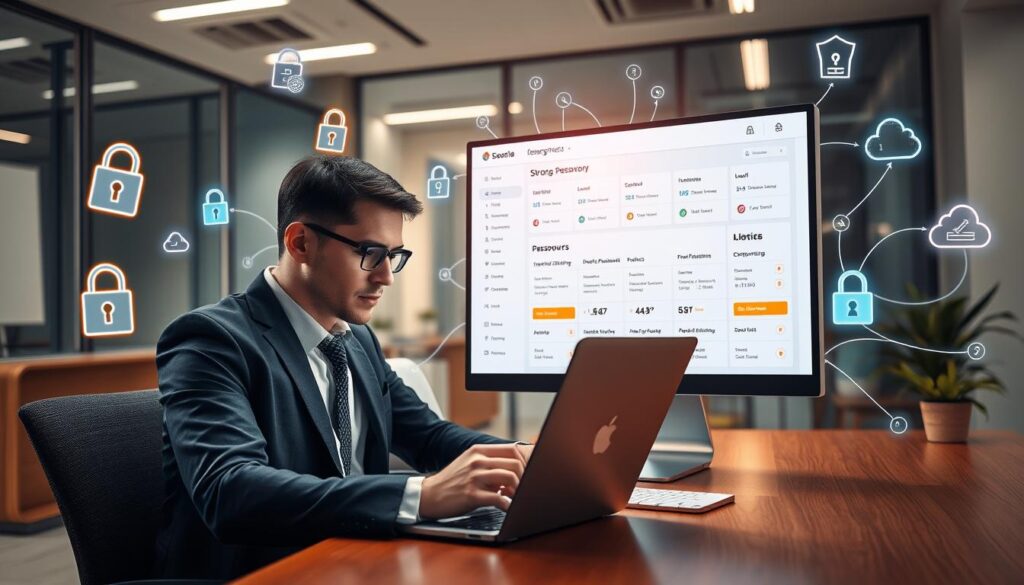
Strong password habits are a key part of technology safety for everyday users. This guide shows how to create resilient credentials and why password managers help. It also explains when to rotate passwords to stay ahead of threats. Readers will find practical online security tips that fit real life.
Creating Strong Passwords
A strong password starts with length. Aim for at least 12 characters for most accounts. A passphrase made of unrelated words is easier to remember and harder to crack.
Mix letters, numbers, and symbols when services allow it. Avoid dictionary words, birthdates, and predictable patterns like “Password123.” Use unique passwords for each login to stay safe long term.
Utilizing Password Managers
Password managers like 1Password, LastPass, Bitwarden, and Dashlane simplify good password habits. They create complex, unique passwords and store them in encrypted vaults with cross-device syncing.
Choose a manager with AES-256 encryption and a zero-knowledge policy. Make sure it supports multi-factor authentication. Back up the master password securely and consider a hardware key for banking or email accounts.
Regularly Updating Passwords
Change passwords after a breach or any suspicious activity. For sensitive accounts, update passwords every six to twelve months. Routine rotation for all accounts is less urgent than having unique passwords and enabled MFA.
Use breach-checking tools to find exposed passwords. Act quickly when a compromise is detected. These tips cut risks and keep protecting personal data online easy and practical.
| Topic | Recommendation | Why It Matters |
|---|---|---|
| Password Length | 12+ characters or passphrases | Longer credentials resist brute-force attacks |
| Composition | Mix letters, numbers, symbols | Reduces predictability and dictionary attacks |
| Password Managers | Use 1Password, Bitwarden, LastPass, Dashlane | Generates unique passwords and stores them securely |
| Encryption & Architecture | AES-256 + zero-knowledge | Protects vault even if provider faces breach |
| Multi-Factor Options | Enable MFA; consider hardware keys | Adds strong second layer beyond passwords |
| When to Update | After breaches, suspicious activity, sensitive accounts annually | Limits exposure of compromised credentials |
| Breach Detection | Use Have I Been Pwned and similar tools | Early detection prompts timely password changes |
Safe Internet Browsing Techniques
Safe browsing starts with paying attention to small details. Readers who use clear internet safety rules face fewer risks. They also make smarter choices online.
The advice below covers site checks, scam avoidance, and browser settings. These tips help you stay safe online.
Recognizing secure websites
Look for HTTPS in the address bar and a padlock icon before entering passwords or payment info. Many trusted sites use TLS/SSL certificates from providers like Let’s Encrypt or DigiCert. You can check the certificate by clicking the padlock to see who issued it and when it expires.
Check the domain name carefully for misspellings or extra characters. Attackers use similar-looking characters to trick users with fake domains. Real sites show clear contact and business information. If this info is missing, it is a warning sign of unsafe sites.
Avoiding phishing scams
Phishing can come through emails, texts, phone calls, and social media. Common warnings are urgent requests for personal information, mismatched web addresses, and strange attachments. Attackers use smishing (texts) and vishing (calls) to rush you.
Hover over links to see the true URL before clicking. If unsure, type the company’s website yourself or call a known number from bills or official papers. Report phishing to email companies and the Federal Trade Commission to help stop repeat attacks. Using spam filters and phishing tools adds extra protection.
Understanding browser privacy settings
Most browsers let you block third-party cookies and control access to your camera, microphone, and location. Turning off autofill on sensitive forms protects credit cards and ID details. Password managers make logging in easier but use them cautiously with strong master passwords.
Try privacy-focused browsers like Mozilla Firefox or Brave. Add extensions such as uBlock Origin or Privacy Badger to block trackers. Private browsing helps on shared devices but does not hide activity from employers or your internet provider. Balancing convenience and privacy is key to safe browsing.
| Focus Area | Practical Steps | Why It Helps |
|---|---|---|
| Site verification | Check HTTPS, click padlock, confirm contact info | Prevents credential theft and payment fraud |
| Phishing defense | Hover links, verify by visiting official sites, enable filters | Reduces risk from fraudulent requests and malware |
| Browser privacy | Block third-party cookies, disable autofill, manage permissions | Limits tracking and protects sensitive data |
| Tools and extensions | Use Firefox/Brave, install uBlock Origin, Privacy Badger | Improves privacy without major disruption to browsing |
Social Media Safety Guidelines
Social platforms shape daily routines. Users should treat these networks like public spaces. Learning social media safety habits protects reputation and data.
A few focused changes make profiles safer. These changes do not limit social life.
Adjust privacy settings on Facebook, Instagram, X, LinkedIn, and TikTok to reduce exposure. Set profiles to private when needed. Limit who can view your posts.
Turn off public search indexing. Restrict who can send friend or follow requests. Review settings after major app updates.
Periodic audits help protect personal data online as platforms change defaults.
Be cautious with sharing. Avoid sensitive details like full birthdate, home address, travel plans, and financial information.
Photos can reveal locations and valuables. Delay location-tagged posts until after a trip. Use direct messages for sensitive conversations.
Safe digital behavior tips prevent social engineering and lower identity theft risk.
Recognize fake accounts to stop scams before they start. Look for low follower counts and many followings.
Check recent account creation dates, generic images, and poor grammar. Verify identities by checking other platforms and official verification badges.
Report suspicious profiles. Enable filters for comments and messages to reduce unwanted contacts. These privacy practices maintain a cleaner feed and safer interactions.
| Area | Simple Action | Why It Helps |
|---|---|---|
| Privacy Settings | Set accounts to private; limit post audience; disable public search | Reduces who can collect profile details and view content |
| Sharing Habits | Avoid posting exact birthdate, address, travel times | Prevents location-based threats and identity theft |
| Photo Sharing | Remove location tags; crop out serial numbers and documents | Stops unintentional leaks of personal or financial data |
| Message Filters | Enable comment and DM filters; restrict unknown senders | Lowers exposure to phishing and scam contacts |
| Fake Account Detection | Check account age, follower ratios, and cross-platform presence | Helps identify impersonators and fraudulent profiles |
| Regular Audits | Review settings quarterly and after app updates | Keeps protections current with platform changes |
Device Security Essentials
Devices serve as gateways to personal data and business systems. Strong device security reduces risks from common threats. It also supports good cyber security habits for both home users and IT teams.
The guidance below gives practical steps for protecting phones, laptops, and routers.
Keeping Software Updated
Patch management is important for Windows, macOS, Linux, iOS, and Android. Updates fix vulnerabilities that ransomware and malware exploit. Users should enable automatic updates on operating systems and apps such as browsers and plugins.
Organizations should test updates on secondary devices first. This prevents downtime and keeps systems secure online.
Using Antivirus Programs
Trusted antivirus solutions include Microsoft Defender, Norton, Bitdefender, and Malwarebytes. These tools offer real-time scanning, on-demand scans, and scheduled full-system checks to find threats.
Keeping signature databases current is essential. Antivirus software creates a defense layer. Pair it with safe-download habits and least-privilege account use for strong online security.
Implementing Firewalls
Firewalls block unauthorized inbound and outbound traffic. Host-based firewalls like Windows Defender Firewall protect individual devices. Router-based firewalls secure the home network perimeter.
Advanced options include network segmentation and hardware firewalls or Unified Threat Management appliances. Combining firewalls with routine monitoring keeps cyber security strong.
Email Safety Measures
Emails remain a primary attack vector for cybercriminals. Practical email safety measures help lower this risk. The guidance below combines simple habits with reliable tools.
These tips support internet safety guidelines and offer concrete online security advice. Small steps can make a big difference in protecting personal data online.
Signs of a suspicious message often appear clearly. Watch for unexpected senders and spoofed display names. Sender addresses that don’t match the company shown are red flags.
Look out for urgent money or credential requests, poor grammar, and threats. Verify doubtful emails through a different channel before responding. Check message headers for anomalies.
Use Gmail, Outlook, or your provider’s tools to report phishing. Reporting improves spam filters and protects other users.
Identifying Suspicious Emails
Look for mismatched links and attachments asking for personal information. Hover over links to see actual destinations. Treat password, Social Security, or bank detail requests as suspicious unless you started them.
When unsure, contact the organization by phone or a known website. Do not use contact details found inside the suspicious email.
Using Multi-Factor Authentication
Enable multi-factor authentication (MFA) on email accounts and critical services. MFA blocks access even if passwords leak. SMS codes offer basic protection but can be vulnerable to SIM swapping.
Use authenticator apps like Google Authenticator or Microsoft Authenticator for stronger security. Push notifications add convenience. For maximum protection, use hardware security keys like YubiKey or Google’s Titan key.
Best Practices for Attachments
Open attachments only when you verify the sender and expect the file. Avoid enabling macros in Office files. Macros often carry malware.
Preview attachments with secure viewers when possible. Scan files with antivirus software before downloading. For large or sensitive files, share links from Google Drive or OneDrive with permission controls instead of sending attachments.
Applying these email safety measures supports broader internet safety guidelines. Routine vigilance helps protect personal data without adding complexity to daily tasks.
Data Privacy Awareness
Understanding how data flows is the first step toward protecting personal data online. Websites, apps, and advertisers collect information through cookies, device fingerprints, telemetry, and behavioral tracking.
Knowing the difference between first-party collection and third-party tracking helps explain targeted ads and profiling. It also shows why data resale can be risky.
Understanding Data Collection
Companies like Google and Facebook gather large amounts of telemetry and browsing signals. They use this data to tailor their services.
Regulators such as the Federal Trade Commission and laws like the California Consumer Privacy Act give consumers rights. These laws allow people to access and delete their data.
Knowing these rules helps individuals request their records, limit profiling, and make smart choices about sharing data.
Enabling Location Privacy
Smartphones track location unless settings are tightened. On iOS, choose “While Using the App” instead of “Always” for most apps.
Review Significant Locations on iOS to remove history. Android users should disable background location and check Google Account Location History.
Turning off location tags on Instagram and Facebook reduces oversharing, which helps protect your privacy.
Evaluating App Permissions
Check installed apps for access to contacts, microphone, camera, and SMS. Use Android Privacy Dashboard or iOS Settings to see recent sensor use.
Remove unused apps and restrict permissions to the minimum needed. Enable ad tracking opt-outs when available.
When installing new software, check the developer’s reputation. Skim the privacy policy for data handling practices.
Small steps like limiting permissions and reviewing privacy dashboards follow digital privacy best practices. These actions improve online security in daily life.
Raising data privacy awareness protects personal data online. Simple audits and settings changes help reduce exposure and keep data under control.
Family Safety Practices
Families need clear, practical steps to keep children safe online. The focus is on building trust and teaching good habits. Caregivers who set expectations and model behavior help kids follow safe digital tips.
Start conversations early and keep them age-appropriate. Talk about cyberbullying, post permanence, and why strangers online can be risky. Use resources from Common Sense Media, FTC’s OnGuardOnline, and the National Center for Missing & Exploited Children to guide lessons.
Educating Children About Online Risks
Explain privacy simply and show examples of oversharing. Encourage children to report uncomfortable chats and block or mute worrying users. Reinforce that asking adults for help is smart, not punishment.
Teach how to spot scams, fake profiles, and manipulative messages. Practice scenarios where children decide what to share and keep private. Praise thoughtful choices to build long-term safe habits.
Setting Up Parental Controls
Use platform tools like Apple Screen Time, Google Family Link, and Microsoft Family Safety. Set content filters, safe search, and app approvals by age and maturity. Configure purchase limits to prevent surprise charges.
Manage controls on routers or services like Circle with Disney and OpenDNS. This enforces rules across devices. Review settings often as apps update and new devices arrive.
Monitoring Screen Time
Balance digital literacy with healthy limits by setting consistent screen-time rules. Plan offline family activities and quiet hours to help with sleep and homework. Use built-in monitoring to track use and discuss patterns together.
Caregivers should model restraint and explain reasons behind limits. Open talks about rules reinforce internet safety and build habits to protect personal data online.
The Role of Cybersecurity in Safety
Strong cyber security habits form the backbone of personal and family protection online. Readers should treat good security like routine maintenance, similar to scheduled health checkups.
Simple, repeatable actions reduce risk and make recovery easier when incidents occur.
Model Cyber Hygiene Habits
Daily routines include using multi-factor authentication, unique passwords, and prompt software updates. Regular backups and cautious clicking behavior help limit damage from malware and phishing.
Minimal permission granting for apps and services keeps data exposure low. Keeping an inventory of accounts and devices speeds incident response.
That list should note recovery emails, trusted contacts, and linked financial accounts. Treating these checks as part of routine care builds resilient technology safety habits.
Resources for Staying Informed
Reliable sources provide timely threat updates and practical guidance. The Cybersecurity and Infrastructure Security Agency (CISA), Federal Trade Commission (FTC), NIST, and US-CERT publish actionable alerts.
Security journalists like Brian Krebs and Bruce Schneier explain trends in clear terms. Vendor advisories from Microsoft, Apple, and Google outline patches and mitigations.
Subscribing to verified social accounts and reputable news aggregators helps with staying secure online. Consumer organizations and official advisories offer steps to follow after a discovery.
Knowing When to Seek Professional Help
Seek experts when signs of active compromise appear: unauthorized transactions, unknown accounts, ransomware messages, or persistent malware. Contact banks and credit issuers immediately for financial exposure.
If identity theft is large scale or malware resists removal, file reports with the FTC and local law enforcement. Engage licensed IT support or reputable cybersecurity firms for incident response and remediation.
Following these online security tips reduces stress and shortens recovery time.
Continuous Learning and Adaptation
Technology safety habits need ongoing attention because threats keep changing. They are not a one-time checklist. Instead, make it a habit to review your security regularly.
Set aside short, regular times to check trusted sources for updates. Also, audit your own security to stay protected.
Staying Updated on Threats
Trusted sources like CISA alerts, Microsoft and Cisco blogs, and news outlets help track new risks. Subscribe to a few focused newsletters. Use Google Alerts for keywords to stay informed without overload.
Do regular personal audits. Check account activity, software versions, and privacy settings. This turns awareness into real steps to stay safe online.
Participating in Safety Workshops
Local libraries, community colleges, AARP programs, and nonprofits offer hands-on training for phishing, privacy settings, and device security. Webinars from groups like SANS Institute or Cyber Aware teach practical skills for all ages.
Attending short workshops helps people learn digital privacy best practices. They can then share these lessons with family and friends.
Engaging with Tech Communities
Join forums like security-focused Reddit groups, GitHub projects for privacy tools, or vetted Slack and Discord channels. Sharing tips and learning from real experiences helps build knowledge.
In-person meetups add local context and accountability. Always cross-check advice with trusted sources to ensure it matches reliable online security tips.
This helps build a culture of shared, trustworthy knowledge in the tech community.