

Advertisements
Nearly 70% of Americans use apps that request access to location, contacts, or microphone within a week. Most do not change the default app privacy settings. This gap shows why managing app permissions is now vital for protecting personal data on mobile devices.
This short guide explains what app permissions are and why they matter. It also shows how to manage app permissions on Android and iOS to reduce unwanted data access. The focus is on practical steps to adjust app privacy and strengthen security settings.
The information helps everyday users and parents monitoring family devices. It also benefits privacy-conscious consumers and small-business employees using mobile apps for work. The article covers types of permissions apps request, the risks, platform instructions, best practices, third-party considerations, privacy-focused alternatives, how to read privacy policies, and tools for ongoing management.
Readers should take away this key point: managing app permissions proactively reduces privacy risks. It also improves app security on both Android and iOS devices.
Key Takeaways
- Managing app permissions is essential to protect personal data on mobile devices.
- Simple changes in app privacy settings can prevent unnecessary access to location, camera, and contacts.
- Both Android and iOS offer built-in controls to review and modify permissions.
- Regular reviews of installed apps reduce privacy risks from unused or over-privileged apps.
- Using privacy-focused apps and tools adds a layer of control for sensitive information.
Understanding App Permissions
Apps request access to device features to deliver functions users expect. Knowing these requests helps users control app data access. This reduces unexpected sharing. This section explains the types of permissions and why careful app permission management matters for privacy.
What Are App Permissions?
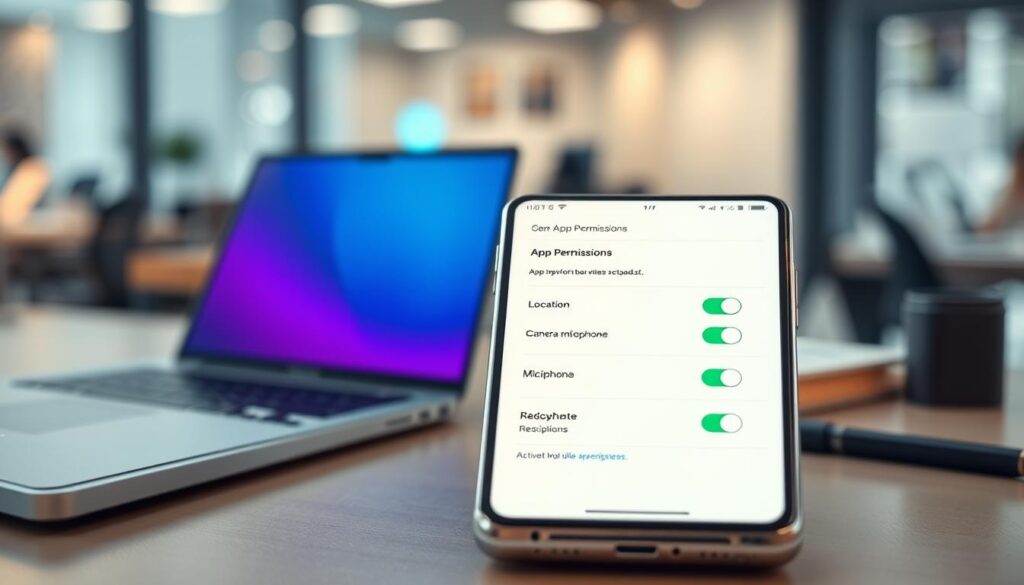
App permissions are explicit authorizations a user grants so an app can use device resources. These resources include camera, microphone, location, contacts, storage, and sensors.
Modern mobile systems separate permissions by when they are granted. Runtime permissions ask the user while the app runs. Install-time or declared permissions are listed when the app is installed or in its manifest.
Android moved to runtime prompts with Android 6.0 (Marshmallow). Apple has long used granular prompts for location, camera, and microphone on iOS.
Why They Matter for Privacy
Permissions control app data access. When an app collects location history, photos, contacts, or personal items, that data can enable profiling and targeted advertising.
Overbroad app permissions increase the risk of unwanted sharing and identity exposure. Malicious or poorly designed apps can misuse permissions to track users or leak sensitive data.
The principle of least privilege helps reduce risk. Apps should get only permissions needed to run. Good permission management limits long-term exposure. It also gives users clearer control over personal data.
Common Types of App Permissions
Apps ask for access to core device features to work properly. Users should know what those requests mean. They also need to understand differences on Android and iOS.
Clear knowledge of app permission management helps people make safer choices when granting rights.

Location Services
Location permissions come in levels. On Android, apps request fine location for GPS-level precision or coarse location for cell and Wi‑Fi based positioning.
On iOS, apps can ask for precise or approximate location. Both platforms separate foreground access from background access.
Common legitimate uses include navigation with Google Maps, ride-hailing with Uber, and weather updates. Background location access lets apps track movement when not visible. This raises higher privacy risk.
Users can limit exposure. iOS choices like “Allow Once” or “Allow While Using the App” narrow who sees a device’s position.
Android permission controls distinguish foreground-only from background access. This allows finer app permission management.
Camera and Microphone Access
Camera and microphone permissions let apps capture photos, videos, and audio. Video conferencing apps like Zoom need these rights to work properly.
Misuse can enable covert recording. Signs include apps asking for camera access without a clear reason or repeated requests after denial.
Both Android and iOS systems show which apps recently used the camera or mic. Regular checks help detect unexpected behavior.
This improves app permission management and keeps users safer.
Storage Permissions
Storage permissions grant read and write access to files like photos, documents, and media. Older Android apps used broad file access.
Modern Android uses scoped storage to limit access to app-specific folders or selected media.
iOS relies on sandboxing. Apps request files through a photo picker or file provider, so the system mediates access.
This reduces broad file exposure compared to full storage permission.
Risks include unauthorized copying or exfiltration of personal files. Careful review of storage permissions helps protect privacy.
Limiting these grants supports better app permission management across platforms.
| Permission Type | Typical Use | Android Behavior | iOS Behavior | Privacy Risk |
|---|---|---|---|---|
| Location | Maps, ride-hailing, weather | Fine vs. coarse; foreground/background split | Precise vs. approximate; Allow Once/While Using | High if background access granted |
| Camera & Microphone | Video calls, photo capture | Permission prompts; indicators show use | Permission prompts; system indicators and control | High if used covertly |
| Storage | Save or open photos, documents | Scoped storage limits broad access | Sandboxing; access via picker or file provider | Moderate to high if broad access allowed |
The Risks of Granting Permissions
Granting app permissions can feel routine during setup. These choices affect how much of a person’s life an app can access.
Careless allowance of app data access increases exposure to profiling and targeted marketing. It can also lead to unintentional sharing with unknown third parties.
Privacy Concerns
Contacts, location, and personal photos are user-identifiable data. A single data type can be sensitive. When apps collect several types, patterns emerge.
These patterns reveal routines, relationships, and habits. Ad networks at Google and Meta use signals to build profiles for precise targeting.
Legitimate targeting can blur with surveillance when data is shared with analytics vendors or brokers. Weak app privacy settings let more parties access profiles. This raises risks to personal autonomy and dignity.
Data Security Threats
Excessive app permissions expand the attack surface for malicious code. A compromised app can use these permissions to steal files or monitor location without consent.
Embedded third-party SDKs with weak security increase risk. Malware can escalate privileges and track users persistently or spread between apps.
Permission misuse can lead to financial loss, reputational harm, and identity theft if sensitive data is exposed.
Users who review app permissions and tighten security settings reduce abuse risks. Regular checks limit data value to attackers and lower chances of harm.
How to Manage App Permissions on Android
Managing permissions keeps an Android device safer and gives users control over app access. The following steps show common paths on stock Android and major OEM skins.
They explain how to view permissions by app or by permission type. Important Android version changes that affect app behavior are also noted.
Accessing Permission Settings
To find Android permission settings, open Settings, tap Apps & notifications or Apps. Then choose See all apps and pick an app to view its permissions.
Another way is Settings > Privacy > Permission manager. There, you can inspect permissions by type, like Camera or Location.
Android 6.0 added runtime permissions, so apps request access while running. Android 11 improved scoped storage, limiting broad file access.
This change also affects how storage permissions appear in app settings.
Modifying Permissions for Each App
Inside an app’s permission panel, users can grant, deny, or set Ask every time for each right. Background location can be set to only while in use or revoked completely.
Camera and microphone access can be disabled to stop active use. The Permission manager lists all apps with access to sensitive resources.
Users should revoke permissions for apps they no longer use. Uninstall or disable apps that request too much access.
Some core functions may fail if a needed permission is denied. Testing the app after changes is a good idea.
To keep app permissions organized, review the Permission manager regularly. Check permission history when available and revoke access to rarely used apps.
This process helps users manage app permissions better. It improves control over Android app permission behavior.
How to Manage App Permissions on iOS
Managing permissions on an iPhone or iPad helps keep personal data private. It also lets users control which apps can access data. iOS shows clear toggles and screens for quick privacy changes.
The steps below explain where to go and which options you should know about. This makes updating app settings easier and faster.
Finding Permission Settings
Open Settings and tap Privacy & Security or Privacy. Then pick a permission type like Location Services, Camera, Microphone, or Photos.
Some permissions appear in the main Settings list under each app name. This lets users see all granted access in one place.
Note that iOS versions vary. For example, iOS 13 added a precise location toggle. iOS 14 introduced approximate location and camera/microphone indicators at the screen top.
These changes affect how you check permission settings on different iOS devices. Knowing this helps in managing app permissions well.
Customizing Permissions Easily
iOS offers options like Allow Once, Allow While Using App, Allow Always, and Never. Allow Once grants temporary access for one session only.
Allow While Using App restricts access to when the app is open. Allow Always lets services like navigation access data in the background.
Location controls include a toggle between precise and approximate location. Apps get either exact coordinates or a general area.
The photo picker lets users share selected images without giving full photo library access. This limits data sharing.
Orange and green dots appear if the microphone or camera is active. This helps users know when an app uses hardware.
To manage app permissions well, review each app’s screen regularly. You can enable Record App Activity to log data and hardware access.
Periodic checks keep privacy tight and make it easier to control app permissions over time.
| Setting Area | Common Options | Why It Matters |
|---|---|---|
| Location Services | Allow Once, While Using App, Always, Precise toggle | Controls sharing of exact or approximate location with apps that track movement |
| Camera & Microphone | Allow While Using App, Never; indicators show active use | Prevents covert recording and alerts users when hardware is in use |
| Photos | Selected Photos, Add Photos Only, Full Library, Never | Limits app access to chosen images instead of the entire library |
| App-Specific Settings | Toggle permissions per app in Settings list | Makes it simple to review and adjust iOS permission settings for each app |
| Privacy Logging | Record App Activity toggle | Provides a timeline of data and hardware access for auditing |
Best Practices for App Permission Management
Keeping control of app privacy settings helps users protect data and stop unwanted access. Regular checks make spotting risky permissions simple. They allow removal of access when it is no longer needed.
The guidance that follows helps readers schedule audits and apply rules for safer app behavior.
Review Your Apps Regularly
Set a regular time to review app user permissions. Monthly or quarterly audits help find apps with location, camera, microphone, or storage access.
Both Android and iOS have built-in tools to review app permissions quickly.
Users can open the permission manager on Android to see which apps access sensitive data. On iOS, the privacy section lists apps by permission type.
Uninstall unused apps or disable permissions for apps used less often. This reduces exposure to privacy risks.
Limit Permissions to Essential Only
Use the principle of least privilege when giving permissions. Only give an app what it needs to work.
Example: allow camera access only when using photo or video features. Avoid letting apps use background location unless for navigation.
Choose temporary options like “Allow Once” or “While Using the App” when possible. Deny always-on or background permissions unless needed for core functions.
This approach makes managing app permissions easier while keeping app features working well.
Teaching family and colleagues to manage app permissions keeps everyone’s privacy stronger. Small, consistent actions build better protection for personal data over time.
Recognizing Unnecessary Permissions
Apps ask for permissions to work. Some requests match the app’s function. Others cross a line and create risk.
Users should learn to spot permission creep. They should restrict app data access when it is not needed.
Identifying Red Flags
Watch for apps that ask for contacts, SMS, or location when these features don’t relate to core functions.
A photo editor asking for call logs or a calculator requesting SMS are suspicious signs.
Be wary of apps that request many high-risk permissions at install. Permission creep often happens when updates add new requests.
Apps with poor ratings, vague descriptions, or privacy complaints often show risky behavior.
Excessive ads or pushy in-app purchases can mean apps collect extra data to make money. Reviews mentioning strange app data access or battery drain may reveal hidden background activity.
Researching Permissions Before Downloading
Read the permission list on Google Play or Apple App Store before installing any app.
Check the developer’s reputation and the number of downloads to decide if an app is trustworthy.
Look at user reviews for privacy and security complaints. Find independent reviews or privacy analyses for popular apps.
Read the app privacy settings and policy to understand how data access will be used.
Choose apps that let users control permissions after installation. Regularly checking permissions helps maintain control and lowers risk.
| Warning Sign | What to Do | Why It Matters |
|---|---|---|
| Contacts or SMS requested without reason | Decline or deny permission; find alternatives | Prevents unauthorized sharing of personal contacts |
| Multiple high-risk permissions on install | Reconsider installation; verify developer | Limits broad app data access and potential misuse |
| Permission creep after updates | Review update notes; revoke new permissions if unnecessary | Keeps long-term app data access under control |
| Poor ratings with privacy complaints | Read reviews; look for alternative apps | Avoids apps with known privacy problems |
| Vague privacy policy or missing details | Search for independent analysis; contact developer | Ensures transparency about app data access |
Third-Party Apps and Permissions
Third-party apps add extra features to devices, but they often ask for broad access. Users should be careful with unverified apps. Always check app user permissions before installation.
Managing app permissions well lowers data leak risks and keeps app security stronger on both platforms.
Unverified apps may contain malware, spyware, or bad SDKs misusing permissions. Installing APKs on Android or profiles on iOS can bypass store checks. This weakens app security and allows attackers access to contacts, location, camera, or files.
Check the developer’s identity and digital certificate before trusting an app. On Android, verify permission prompts and package signatures. On iOS, inspect app listings and certificates for enterprise installs. These steps help spot suspicious apps early.
Risks of Using Unverified Apps
Some third-party apps ask for too many permissions that simple utilities do not need. Giving full device access may expose personal data to third parties. Network tools can show how untrusted apps send data to unknown servers without clear consent.
Side-loaded apps skip Google Play reviews and may have hidden trackers. Enterprise-signed iOS apps might request background access regular apps don’t get. Both methods can weaken app security and avoid standard protections.
How to Safely Use Third-Party Applications
Use Google Play and Apple App Store whenever possible. These stores vet apps and provide clearer info about developers. If you must use a third-party tool, limit its access. Grant permissions only while features are used.
For sensitive work, run third-party apps on a secondary device. Use a VPN or firewall app to monitor outgoing traffic. This helps detect unusual connections and keeps your main device safer.
Before installing, follow this short checklist:
- Verify the developer’s identity and read reviews.
- Check requested app permissions and deny those not needed.
- Choose minimal runtime access instead of always-on permissions.
- Avoid unknown links and unverified APK downloads.
- Use VPN or firewall tools to watch network activity.
| Risk | Indicator | Safe Action |
|---|---|---|
| Malware or spyware | Excessive background data use, unknown servers | Block network access, uninstall app, run a security scan |
| Unneeded device access | Camera, microphone, or contacts requested by simple utilities | Adjust app permission management to runtime-only or deny |
| Sideloaded APK risks | App not listed on Google Play, unknown signature | Avoid APK installs, verify APK signature if necessary |
| Enterprise profile installs on iOS | Prompt to trust an enterprise developer | Confirm organization legitimacy, restrict with iOS app permission controls |
| Data exfiltration | Unexpected outbound connections | Use VPN/firewall, revoke app security settings that allow network access |
Using Privacy-Focused Apps
Choosing apps that focus on user privacy limits app data access. It also makes managing permissions easier.
Readers should compare features and privacy promises. They need to pick tools that match daily habits.
This helps reduce how much personal data is exposed.
Alternatives to common apps
For messaging, Signal uses end-to-end encryption. It also keeps minimal metadata, unlike default apps.
Brave and DuckDuckGo browsers cut down tracking. They offer clearer controls than some mainstream browsers.
For maps, users can pick apps with clear privacy policies. They can also limit Google Maps to location-only when active.
Encrypted photo storage services keep files private. They store data on the device or use zero-knowledge clouds.
Each alternative has trade-offs. Signal might lack some features found on bigger platforms.
Brave and DuckDuckGo may not support all browser extensions. Encrypted storage can make sharing across devices harder.
Users must balance privacy goals with convenience and compatibility when choosing alternative apps.
Increased control over permissions
Privacy-focused apps request fewer permissions. They often offer detailed privacy settings for better control.
Some apps encrypt data locally so less leaves the device. Open-source apps like Signal and Tor Browser allow code audits.
App stores now show privacy labels. Google Play adds data safety sections for better app comparison.
Checking these summaries helps users see what apps collect before downloading. Regularly reviewing app privacy settings also helps.
This practice reduces unnecessary app data access over time.
Being Informed: App Privacy Policies
Reading app privacy policies helps users make smarter choices about app permissions and privacy settings. A quick scan reveals what data an app collects and how long it stores it. It also shows if the app shares info with advertisers or analytics firms.
Reading Terms and Conditions
Look for sections that list data types collected and the reason for collection. Notice retention times, sharing clauses, and legal jurisdictions. If the policy mentions Google Analytics, Facebook, or Amazon Web Services, note the data access those partners receive.
Scan for opt-out options and clear steps to change privacy settings. Check if the app offers detailed controls for location, microphone, or contacts. Also, find contact details for privacy questions and data deletion requests.
Understanding Data Use and Sharing
Apps often share aggregated data with ad networks and analytics providers. Aggregated data is different from personally identifiable information. Users should verify if the app treats device IDs or behavioral profiles as PII.
Look for GDPR or CCPA compliance and any limits on data sharing. A good policy explains how user data is processed in the cloud and protected. Apps depending on many third parties increase the scope of data access.
When evaluating an app, compare how its policies affect permission management. Choose apps that limit data collection to what’s necessary. Prefer apps that let users adjust permissions and privacy settings easily.
Tools for Managing App Permissions
Users can control app access with a mix of native controls and external apps. Effective app permission management reduces unwanted data sharing. It also tightens app security settings across devices.
Built-in tools on Android and iOS let people audit permissions without extra installs. Android has a built-in permission manager in Settings. It includes a dedicated “App permissions” page and controls for each app.
The Permission Manager shows which apps use location, camera, microphone, and more. Google Play Protect scans for malicious behavior. Android can also revoke permissions automatically for unused apps.
iOS puts controls in Privacy & Security. Users can review per-app permission settings and see indicators when the camera or microphone is active. They can also read App Store privacy labels before downloading.
Both systems let users change permissions quickly. Users can also view recent permission history to track unexpected access.
Built-In Operating System Features
Use the built-in permission manager to run periodic audits. On Android, open Settings > Privacy > Permission Manager to filter by permission type. Then revoke access as needed.
On iPhone, go to Settings > Privacy & Security and adjust each app’s permission switches. These features are the first line of defense for app permission management.
Enabling notifications for permission use helps spot odd behavior. Review permission history regularly. Enable automatic revocation on Android to remove rights from dormant apps.
Regular checks of app security settings reduce exposure from outdated permissions.
Third-Party Permission Management Tools
Third-party permission management tools can supplement native controls on Android. Reputable mobile security suites like Norton and Bitdefender offer monitoring and alerts. Firewall apps block network access for apps that request excessive rights.
Some third-party tools require their own permissions to work properly. Users should pick well-reviewed vendors. They must verify compatibility with the device OS version.
Note that iOS limits third-party control over system permissions. These tools have less influence on iPhones than Android devices.
Combining native controls with trusted third-party tools provides a layered approach. This strategy strengthens app security while keeping users in charge of sensitive data access.
Conclusion: Take Control of Your Privacy
App permission management is an ongoing part of device care. New apps, updates, and platform changes can change what data an app can access.
Users should review app privacy settings regularly. They need to watch for unusual behavior that might signal a problem.
The Importance of Staying Vigilant
Users who manage app permissions reduce risks. Both Android and iOS have built-in tools to limit constant background access. Options like “allow once” or “while using” help control access.
Staying informed about privacy improvements helps users keep app security settings current with threats.
Final Thoughts on App Permission Management
Key steps include reviewing and revoking unnecessary app permissions and preferring temporary access options.
Use operating system controls and choose privacy-focused apps when possible. Users should inspect privacy policies carefully and avoid unverified third-party apps.
Schedule a permissions audit today to reduce exposure and strengthen app security settings.