

Advertisements
Nearly 60% of American knowledge workers spend part of their week working remotely. This shift makes home office technology as vital as a good desk and chair.
This short guide explains how to build a functional home office setup. It covers remote work tools and productivity gadgets.
The guide includes hardware, software, connectivity, ergonomics, smart devices, and emerging trends. Readers can expect clearer workflows, stronger security, and more comfort.
Home office technology means computers, monitors, peripherals, collaboration, and cloud software. It also includes fast internet, Wi‑Fi, ergonomic accessories, and smart-office solutions like voice assistants and automated lighting.
The guide also looks ahead to AI features and sustainable choices. These help future‑proof a home office setup.
The advice targets United States remote workers and hybrid employees, including full‑time remote staff, part‑time commuters, and freelancers. It adapts to different budgets.
The article moves from why tech matters to choosing devices, software, connectivity tips, ergonomics, audio/video gear, cloud options, smart devices, cybersecurity, trends, and final recommendations.
Readers will learn how to set up a reliable workstation. They will also pick hardware and software that grow with their needs. Plus, protect data and create a comfortable environment that supports health and productivity.
Key Takeaways
- Home office technology combines hardware, software, connectivity, ergonomics, and smart devices to support remote work.
- A well-planned home office setup improves productivity and reduces physical strain.
- Select remote work tools that scale with job demands and budget constraints.
- Fast, reliable internet and good Wi‑Fi are foundational for virtual collaboration.
- Prioritize security and cloud backups to protect work and personal data.
- Consider AI features and sustainable products to future‑proof the workspace.
Understanding the Importance of Home Office Technology
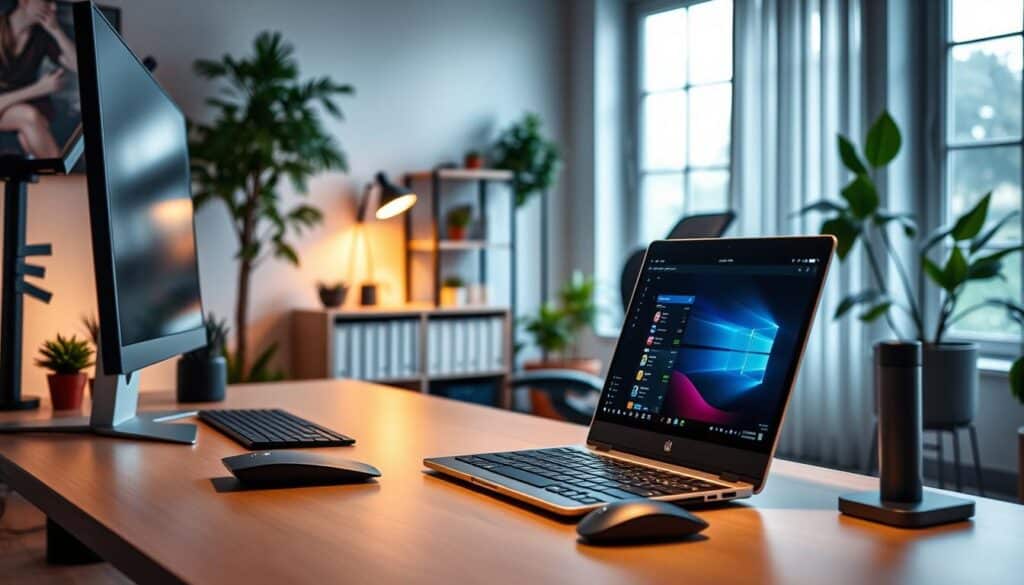
Investing in quality home office technology reduces friction in daily work. Faster hardware and solid-state drives cut load times.
Collaboration platforms like Zoom and Microsoft Teams remove communication bottlenecks. Automation tools free time for focused projects.
Small upgrades often yield clear returns. Dual monitors and SSDs reduce context-switching and waiting.
Noise-cancelling headsets from Bose or Sony lower meeting fatigue. They help maintain attention during long calls. These tools repay their cost in saved hours.
Return on investment matters when choosing gear. Compare purchase prices with time saved, lower commuting costs, and possible tax deductions.
A tax professional can confirm eligibility and help maximize benefits. Comfort and ergonomics shape output and wellbeing.
An adjustable desk and a Herman Miller or Steelcase chair cut musculoskeletal strain. Position a monitor at eye level and use lumbar support to reduce sick days.
Work from home accessories that support posture protect long-term health. Personal routines and environment cues sustain focus.
Scheduled do-not-disturb periods, smart lighting like Philips Hue, and ergonomic accessories create signals for work mode.
Smart setups help the brain switch into concentrated states faster. Prioritize tools based on tasks.
For frequent video calls, invest in a quality webcam, microphone, and stable internet. Heavy workloads need a powerful CPU and fast storage.
Creative work benefits from color-accurate monitors and a responsive tablet. The right mix of technology yields large productivity gains.
| Priority | Typical Tasks | Recommended Upgrades | Expected Benefit |
|---|---|---|---|
| Communication | Video calls, team meetings | High-quality webcam, noise-cancelling headset, stable router | Clearer meetings, less fatigue, fewer dropped calls |
| Productivity | Multitasking, document editing | Dual monitors, SSD, collaboration software | Reduced context switching, faster file access |
| Performance | Data analysis, rendering | High-core CPU, extra RAM, NVMe SSD | Shorter compute times, smoother workflows |
| Ergonomics | Long work sessions | Adjustable desk, ergonomic chair, monitor arm | Less pain, fewer sick days, sustained focus |
| Environment | Focus, routine | Smart lighting, do-not-disturb scheduling, work from home accessories | Consistent cues, improved concentration |
Key Devices for Your Home Office Setup
Choosing the right gear shapes daily work. A solid home office starts with core devices matching tasks and space.
Readers should balance portability, power, and ergonomics when picking hardware.
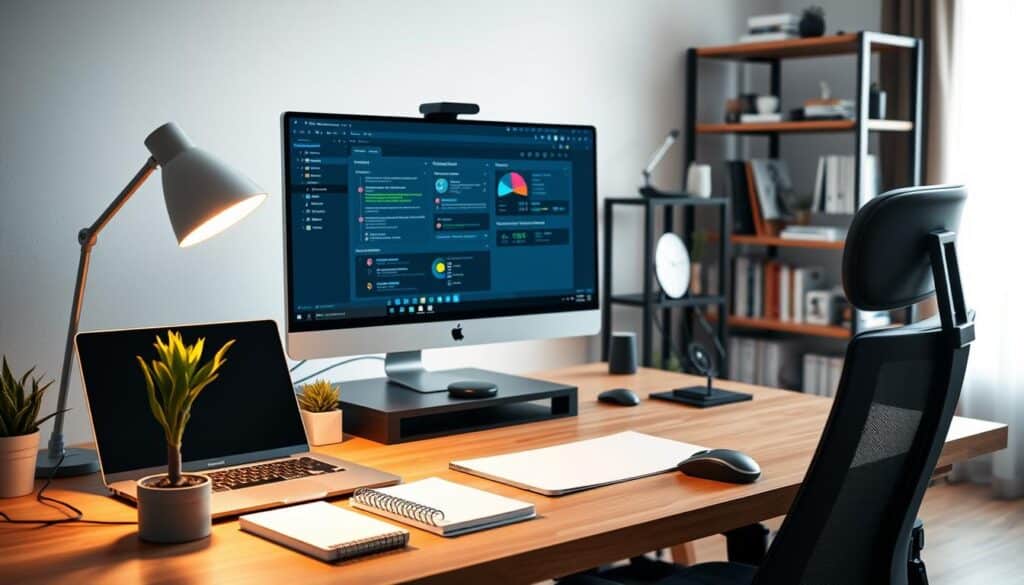
Laptops vs. Desktops: Which is Best for You?
Laptops suit people moving between rooms or meeting clients. Models like Apple MacBook Air, MacBook Pro, Dell XPS, and Lenovo ThinkPad offer built-in webcams and battery backup.
Portability and compactness make these machines ideal for small apartments and frequent travel.
Desktops deliver better performance per dollar for heavy tasks. Apple iMac, Mac Studio, custom Windows builds, and HP Omen systems work well for video editing and software development.
Desktops allow easier upgrades and longer service life when expansion is needed.
Decision factors include workload, upgradeability, budget, and space. Teams should pick a device that supports core software, cooling, and expected lifespan.
Benefits of Dual Monitors
Adding a second screen boosts efficiency. Two 24″ monitors often outperform a single 27″ display for multitasking.
One screen can show email and chat while the other holds the main workspace. This reduces tab switching and improves focus.
Recommended monitors have IPS panels for accurate color and 1440p resolution for crisp text. Adjustable stands or VESA mounts help set ideal ergonomic height.
Laptops connect to multiple displays using a docking station or USB-C hub for streamlined cables.
Peripherals matter as much as screens. Mechanical keyboards feel tactile for typists while membrane keyboards stay quiet.
Ergonomic mice reduce wrist strain. Bluetooth or Logitech Unifying Receiver models cut cable clutter and pair well with wireless devices and gadgets.
Other core items include a keyboard and mouse or trackpad, a docking station, UPS or power strip, external storage, and a printer/scanner if needed.
These elements form a resilient platform for modern home office technology and consistent remote work performance.
Essential Software for Remote Work
The right mix of apps shapes productive home office technology. Teams need tools for communication, file sharing, scheduling, tracking time, and keeping accounts safe.
Choosing purpose-built software reduces friction and keeps work moving smoothly.
Below are focused categories and practical recommendations that match common workflows.
Each option supports remote work tools and helps teams stay aligned without overload.
Collaboration Tools for Team Efficiency
Video conferencing choices include Zoom, Microsoft Teams, and Google Meet.
Zoom handles large meetings well. Microsoft Teams links tightly to Microsoft 365 for document access and chat.
Google Meet fits organizations that rely on Google Workspace.
For team chat, Slack and Microsoft Teams excel.
Slack offers many app integrations and channel organization.
Microsoft Teams combines chat, calendar, and file access into one interface to ease context switching.
Project management varies by complexity.
Trello suits simple boards and visual workflows.
Asana and Monday.com work for mid-size teams needing timelines and automations.
Jira fits development teams requiring issue tracking and advanced workflows.
Document collaboration relies on Google Workspace and Microsoft 365.
Google Docs and Sheets are strong for real-time edits.
Microsoft Word, Excel, and SharePoint serve teams needing advanced formatting and enterprise controls.
Time Management Apps to Stay on Track
Focus and Pomodoro apps help maintain rhythm.
Forest, Focus@Will, and Pomodone reduce distractions and signal work blocks.
These tools pair well with shared calendars to set visible do-not-disturb periods.
Freelancers should use Toggl or Harvest for time tracking and invoicing.
These solutions make billing transparent and simplify client reporting.
Calendly, Google Calendar, and Microsoft Outlook streamline scheduling and reduce back-and-forth.
Setting boundaries matters.
Shared calendars, clear status indicators, and agreed communication windows limit interruptions.
Time management apps reinforce these norms and protect deep work spans.
Security, Integrations, and Best Practices
Implement single sign-on when possible and use password managers like 1Password or LastPass for credential safety.
Cloud storage services such as Google Drive and OneDrive integrate with collaboration tools to centralize documents.
| Category | Top Options | Best For |
|---|---|---|
| Video Conferencing | Zoom, Microsoft Teams, Google Meet | Large meetings, Microsoft 365 users, Google Workspace users |
| Team Chat | Slack, Microsoft Teams | Channel-based collaboration, integrated Microsoft ecosystem |
| Project Management | Trello, Asana, Monday.com, Jira | Visual boards, mid-size teams, flexible workflows, software development |
| Document Collaboration | Google Workspace, Microsoft 365 | Real-time editing, enterprise document control |
| Time Management Apps | Forest, Focus@Will, Pomodone, Toggl, Harvest | Focus and Pomodoro, time tracking and invoicing |
| Scheduling | Google Calendar, Microsoft Outlook, Calendly | Team calendars, enterprise email, client bookings |
| Security & SSO | 1Password, LastPass, Okta (SSO) | Password management, centralized authentication |
High-Speed Internet: A Necessity
Reliable connectivity defines a modern home office setup. Video meetings, cloud backups, remote desktop sessions, and large file transfers demand steady bandwidth and low latency.
When the connection falters, productivity drops and meetings stall. Investing in robust home office technology reduces interruptions and keeps workflows smooth.
Choosing the right internet plan starts with realistic needs. A single user handling email and occasional video calls may be fine with 25–100 Mbps.
Multiple users, 4K streaming, or heavy uploading require 100–300+ Mbps or more. Upload speed matters for cloud backup and video calls. Fiber providers like Google Fiber and Verizon Fios often offer symmetric rates that benefit creators and remote teams.
Assess local providers before committing. Comcast Xfinity, AT&T Fiber, Verizon Fios, and Spectrum appear in many markets.
Compare data caps, contract terms, and customer support. Business-class plans deliver service-level guarantees and static IPs when stability and remote access are critical.
Improving Wi-Fi performance starts with placement and equipment. Put the router near the center of the home to reduce dead zones. Use dual-band settings: 2.4 GHz for broad coverage, 5 GHz for faster links.
Upgrading to Wi‑Fi 6 routers from Netgear, ASUS, or TP-Link helps when many wireless home office devices connect at once.
Large or multi-story homes benefit from mesh systems such as Eero, Google Nest Wifi, or Orbi. Mesh nodes extend strong signals to remote rooms and cut interruptions during calls.
For latency-sensitive work, plug critical computers or docking stations into Ethernet ports to bypass wireless congestion.
Simple optimizations yield better performance. Keep router firmware current. Use channel settings and Wi‑Fi analyzers to diagnose interference from neighbors or microwaves.
Prioritize traffic for conferencing apps in the router’s QoS settings when possible.
Balancing speed, reliability, and cost shapes an effective home office setup. The right plan and tuned network let home office technology and wireless home office devices perform at their best.
This lets teams collaborate without losing time to glitches.
Ergonomics in Home Office Technology
Good posture and smart product choices reduce strain and boost focus. This passage covers key ergonomic principles and gear that makes a home office comfortable and safe.
Choosing the Right Chair and Desk
A chair with adjustable seat height, strong lumbar support, and armrests helps prevent back pain. Brands like Herman Miller Aeron, Herman Miller Embody, and Steelcase Gesture offer durable designs for long hours.
Budget shoppers can try HON Ignition for a good balance between features and price.
Desk choice matters when designing home office technology. Fixed-height desks work for simple setups. Sit-stand desks, like electric models from Uplift and Fully Jarvis, let users alternate positions to reduce sedentary time.
Check load capacity and cable management to keep monitors and peripherals safe and tidy.
Accessories for Better Posture
Monitor arms or stands place displays at eye level. A properly positioned display keeps the neck neutral and reduces upper-back strain.
Laptop stands lift screens to the right height when paired with external keyboards.
Ergonomic office equipment like split keyboards reduces wrist strain. Microsoft Sculpt and Logitech Ergo encourage a neutral wrist position. Keyboard trays can improve hand alignment even more.
Footrests keep feet flat and knees near a 90-degree angle. Anti-fatigue mats ease pressure during standing periods.
Work-from-home accessories such as adjustable footrests and gel pads add comfort during long sessions.
Simple routines matter. Short stretch breaks, standing intervals, and app reminders improve circulation. These habits help reduce repetitive strain injuries.
| Item | Key Benefit | Recommended Brands | Use Tip |
|---|---|---|---|
| Ergonomic Chair | Supports lumbar curve; adjustable fit | Herman Miller Aeron, Embody; Steelcase Gesture; HON Ignition | Adjust seat height so feet rest flat and knees at ~90° |
| Sit-Stand Desk | Reduces sedentary time; supports varied postures | Uplift; Fully Jarvis | Alternate sitting and standing every 30–60 minutes |
| Monitor Arm | Positions screen at eye level; frees desk space | Ergotron; Amazon Basics | Top of screen at or just below eye height |
| Split Keyboard / Tray | Keeps wrists neutral; reduces strain | Microsoft Sculpt; Logitech Ergo | Place at elbow height with slight negative tilt |
| Footrest / Anti-Fatigue Mat | Improves leg comfort while sitting or standing | Humanscale; Everlasting Comfort | Use footrest if feet do not reach floor comfortably |
Audio and Video Equipment for Virtual Meetings
Clear audio and clean video shape how colleagues see presence during virtual meetings. Audio quality often matters more than video for understanding and meeting success.
A sharp image still helps boost engagement and trust, especially in calls with clients.
Best Webcams for Clear Video
Built-in laptop cameras work in a pinch. External webcams offer better color, focus, and low-light ability.
Popular options include the Logitech Brio for 4K HDR clarity, Logitech C920/C922 for reliable 1080p, and Razer Kiyo with a ring light.
Camera placement is important. Position it at eye level with a tripod or mount to avoid awkward angles.
Use soft frontal light to reduce shadows. Ring lights or LED panels like Elgato Key Light provide steady illumination and a polished look for presentations.
Quality Headsets for Crystal-Clear Audio
Wired headsets offer steady audio and low delay. Brands like Audio-Technica and Sennheiser are known for clear sound.
Bluetooth models suit those who want mobility. The Jabra Evolve series and Sony WH-1000XM5 include active noise cancellation for noisy homes.
Choose headsets with noise-canceling microphones if you share space with family or roommates.
For podcasters or presenters needing studio sound, pair a USB condenser microphone like Blue Yeti or Shure MV7 with closed-back headphones.
Acoustic treatment cuts echo and improves recording quality. Simple fixes include rugs and heavy curtains.
Portable acoustic panels fit small spaces. Place the microphone at the right distance, use a pop filter to soften plosives, and angle it off-axis to reduce breath noise.
| Category | Recommended Models | Best For | Notes |
|---|---|---|---|
| Webcam | Logitech Brio, Logitech C920/C922, Razer Kiyo | Video clarity, streaming, low-light | External webcams improve image; mount at eye level; use soft frontal light |
| Wired Headset | Audio-Technica, Sennheiser models | Consistent audio, low latency | Preferred for meetings where reliability matters; wired connection avoids dropouts |
| Wireless Headset | Jabra Evolve series, Sony WH-1000XM5 | Mobility, noise cancellation | Good for moving around the house; check battery life and Bluetooth stability |
| USB Microphone | Blue Yeti, Shure MV7 | Podcasting, presentations | Pair with headphones for monitoring; use pop filter and proper mic placement |
| Lighting & Acoustic | Elgato Key Light, ring lights, acoustic panels | Even lighting, echo reduction | Soft frontal light avoids harsh shadows; rugs and curtains reduce reverberation |
This gear list blends reliable productivity gadgets with remote work tools and wireless home office devices. Thoughtful choices lift meeting quality and make remote collaboration feel natural and professional.
Cloud Storage Solutions for Every Need
Cloud storage is key in modern home office technology. It supports collaboration, automatic backup, and file sync across devices.
Disaster recovery also depends on cloud storage. Choosing the right service shapes how teams use remote work tools to stay productive.
Different providers fit different workflows. Some focus on real-time collaboration while others emphasize reliable sync and local space savings.
Cost, integrations, and recovery features determine the best fit for freelancers, small businesses, and corporate teams working from home.
Comparing Popular Options: Google Drive vs. Dropbox
Google Drive links tightly with Google Workspace apps like Docs, Sheets, and Slides. Teams gain real-time editing, shared drives, and Gmail integration.
Free accounts include 15 GB shared across services. Paid plans increase storage through Google One or Workspace business options.
Dropbox offers fast and reliable sync across devices. Smart Sync reduces local storage use, while version history protects against changes.
Dropbox Paper provides a simple collaboration space. Paid tiers like Dropbox Plus and Business offer more storage and admin controls.
| Feature | Google Drive | Dropbox | Other Options |
|---|---|---|---|
| Collaboration | Real-time editing with Docs/Sheets/Slides | Collaborative notes via Paper; strong sync | OneDrive with Office 365; Box for enterprise |
| Free Storage | 15 GB shared | 2 GB baseline; referral increases | iCloud for Apple users; OneDrive 5 GB |
| Sync & Local Space | Selective sync options | Smart Sync to save disk space | Synology Cloud Sync for NAS users |
| Integrations | Gmail, Calendar, Meet | Wide third-party ecosystem | Strong Office 365 tie-ins in OneDrive |
| Recovery & Versioning | Version history; recovery tools | Extended version history and recovery | Box and enterprise plans with retention controls |
How to Secure Your Files in the Cloud
Start with strong, unique passwords. Enable two-factor authentication on all cloud accounts. These steps protect against unauthorized access.
Use version history and regular backups to guard against accidental deletion. Consider a secondary backup on an external hard drive or NAS device from Synology or QNAP for extra safety.
For very sensitive data, add client-side encryption. Tools like Cryptomator and Boxcryptor encrypt files before they leave your device.
Enterprise teams may choose services offering end-to-end encryption and advanced key management.
Set access controls and expiration for shared links when collaborating. Regularly audit sharing settings to keep access limited to the right people.
Combining secure practices with your cloud platform makes remote work tools safer and smarter for any home office setup.
Smart Home Devices Enhancing Productivity
Smart home technology removes small distractions that break focus. Simple automations help start the workday. They also manage interruptions and keep routines consistent.
Thoughtful setup turns home office technology into a helpful aid. It becomes less of a gadget to manage.
Voice Assistants in the Home Office
Voice assistants like Amazon Echo (Alexa), Google Nest (Google Assistant), and Apple HomePod (Siri) perform hands-free tasks. They set timers and reminders and add items to calendars and task lists.
These devices launch voice-activated conferencing and pull quick facts without opening an app. They also control lighting, thermostats, and meeting gear.
Use cases include starting calls, muting microphones, and launching focus playlists while keeping hands on the keyboard.
Privacy matters with constant listening. Professionals should review microphone settings, mute options, and local processing.
Compare each brand’s privacy policy. Choose models with on-device processing or clear data-sharing controls.
Smart Lighting Solutions for Focus
Smart lighting products like Philips Hue, LIFX, and Sengled offer tunable color temperature and brightness. Cooler, brighter light boosts morning alertness. Warmer tones in late afternoon ease the transition out of deep focus.
Layer lighting with ambient fixtures, task lamps, and subtle accent lights. This reduces glare on screens and creates even illumination.
Position task lights to avoid reflections. Use shades to limit direct screen washout.
Automation extends energy savings and signals routine cues. Schedules, occupancy sensors, and scenes mark work start and stop times.
Link smart lighting to voice assistants or calendar events. This creates a seamless daily flow.
Choose protocols and devices that fit the home office technology ecosystem. Aim for reliability, energy efficiency, and ease of control.
Cybersecurity Measures for Home Offices
Home networks are often less secure than corporate ones. This makes remote setups targets for phishing and ransomware attacks. Unsecured Wi‑Fi and stolen credentials increase risks too.
A clear security plan helps protect work data. It maintains trust with employers and clients. This is vital when using home office technology and remote tools.
Strong passwords and two-factor authentication are the first defense. Password managers like 1Password and Bitwarden make managing credentials easy. Enabling 2FA on email, cloud storage, and apps lowers account takeover risk.
Updating systems closes known security holes. This includes operating systems, router firmware, and business applications. Regular updates also support endpoint protection and stop ransomware attempts.
Protecting Your Data from Threats
Segment your home network to keep IoT devices away from work machines. Many routers allow creating guest SSIDs or VLANs for smart devices. Work devices should stay on a separate SSID when possible.
Backups should follow the 3-2-1 rule: three copies on two media and one offsite. Using an external drive plus cloud backup protects against hardware failure and ransom attacks.
Phishing is the main source of breaches. Verify links and sender addresses carefully. Avoid downloading unexpected files. Use encrypted email for sensitive messages.
Essential Software for Cybersecurity
Endpoint protection from trusted vendors guards against malware. Norton and Bitdefender suit consumers. CrowdStrike offers business-grade protection for teams. Windows Defender provides basic protection on many PCs.
VPNs secure internet traffic on public Wi‑Fi and during remote work. Services like NordVPN and ExpressVPN encrypt connections. Many businesses provide corporate VPNs for safe resource access.
Router security is important. Change default admin passwords, enable WPA3 if available, and update firmware regularly. A properly set firewall reduces risks to home office devices and remote tools.
| Focus Area | Recommended Tools | Action Steps |
|---|---|---|
| Passwords & Access | 1Password, Bitwarden | Use unique passwords, enable 2FA on accounts |
| Endpoint Protection | Norton, Bitdefender, CrowdStrike, Windows Defender | Install and schedule regular scans and updates |
| VPN & Remote Access | NordVPN, ExpressVPN, corporate VPNs | Use VPN on public networks and for sensitive work tasks |
| Network Security | Modern routers with WPA3 | Change admin credentials, enable guest SSID or VLAN |
| Backups | External drives, cloud providers | Follow 3-2-1 rule; encrypt sensitive backups |
| Training & Practices | Phishing simulations, secure collaboration habits | Verify links, limit file permissions, use encrypted email |
Future Trends in Home Office Technology
The pace of change in home office technology is quick. Workers will see smarter tools, greener products, and improved connectivity shaping daily routines.
Staying aware of the latest home office technology trends helps professionals plan upgrades and choose durable gear.
The Rise of AI and Automation
AI and automation are moving from novelty to necessity. Applications like Otter.ai and Microsoft Teams provide accurate meeting transcriptions and highlights that save time.
Writing assistants such as Grammarly and ChatGPT speed content creation while maintaining tone and clarity.
Workflow tools cut repetitive work. Zapier, Make, and Microsoft Power Automate connect apps to automate routine tasks.
New hardware features include adaptive noise suppression, auto-framing cameras, and smart background handling to improve calls without extra effort.
Sustainability in Home Office Solutions
Energy efficiency is a key part of modern home office choices. Energy Star-rated monitors and laptops reduce power draw.
LED lighting and smart power strips trim standby consumption. Buying from Dell or Apple can include take-back programs to help manage e-waste.
Durability and repairability extend product life. Refurbishing older machines and choosing modular desks made from recycled materials lower the environmental footprint.
Hybrid work models cut commuting emissions. Thoughtful home office technology choices support broader sustainability goals.
- Follow Wired, The Verge, and TechCrunch for product news and reviews.
- Audit devices annually to check for firmware updates and energy settings.
- Prioritize repairable, upgradeable gear to reduce waste and cost over time.
Final Thoughts on Building Your Ideal Home Office
Creating an efficient home office starts with setting clear priorities like reliable internet and matching devices. Ergonomic choices help protect your health during long work hours. Secure your systems and use smart tools only if they save time.
A simple, phased approach works best. Begin with core hardware and connectivity. Add monitors, accessories, and smart devices as your needs grow.
Making Technology Work for You
Teams and individuals can review daily tasks to find the most useful tools and remove clutter. Establish standard routines and set firm boundaries to improve focus and mental health. Practical bundles like Microsoft 365 or Google Workspace help reduce costs and simplify collaboration and storage.
Continuous Learning and Upgrading Your Setup
Plan regular reviews such as quarterly software checks and yearly hardware evaluations. Maintain good security habits all the time. Test new tools with free trials to see if they work before buying.
Stay informed by following trusted tech blogs, manufacturer newsletters, and professional groups on LinkedIn and Reddit. Check communities like r/WorkSetup and r/RemoteWork for useful tips.
Use this checklist: evaluate your job needs, set a budget, secure internet, pick devices and ergonomic gear, install helpful software, and plan future upgrades. With focus on tech, learning, and setup, your home office will stay productive, comfortable, and safe.